Create Custom Writing Rules Without YAML in ProseLint Web
Style guide packages like Microsoft, Google, and Red Hat cover general writing conventions, but every team has rules that no off-the-shelf package addresses. Internal terminology preferences, banned marketing phrases, readability thresholds for a specific audience — these rules live in team wikis or in reviewers' heads, not in your linter.
Vale has always supported custom rules through YAML configuration files. ProseLint Web v0.2.0 brings that powerful capability to the browser with a visual rule builder. You pick a rule type, fill in the fields, and Vale runs your rule immediately — no YAML files to write, no local toolchain to install.
This is Part 1 of a three-part series on v0.2.0 features. Part 2 covers format-aware linting and scope filtering, and Part 3 covers custom vocabulary.
Why Vale's custom rules matter
Vale packages enforce widely accepted style conventions. Vale's custom rule system fills the gaps specific to your work — and ProseLint Web now makes that system accessible without writing YAML:
Team style guides — Your documentation team prefers "select" over "click on" or bans phrases like "please note." Custom rules enforce these preferences automatically instead of relying on manual review.
Brand voice — Marketing and product teams often have words and phrases that should always or never appear. A rule that flags "cheap" and suggests "affordable" keeps messaging on brand.
Domain terminology — Medical, legal, and technical writing have field-specific conventions that general-purpose packages don't cover. A custom rule can enforce "patient" instead of "client" in healthcare docs.
Readability requirements — Some organizations mandate a maximum reading level for public-facing content. A readability rule can flag content that exceeds a Flesch-Kincaid grade level threshold.
Vale's 8 check types
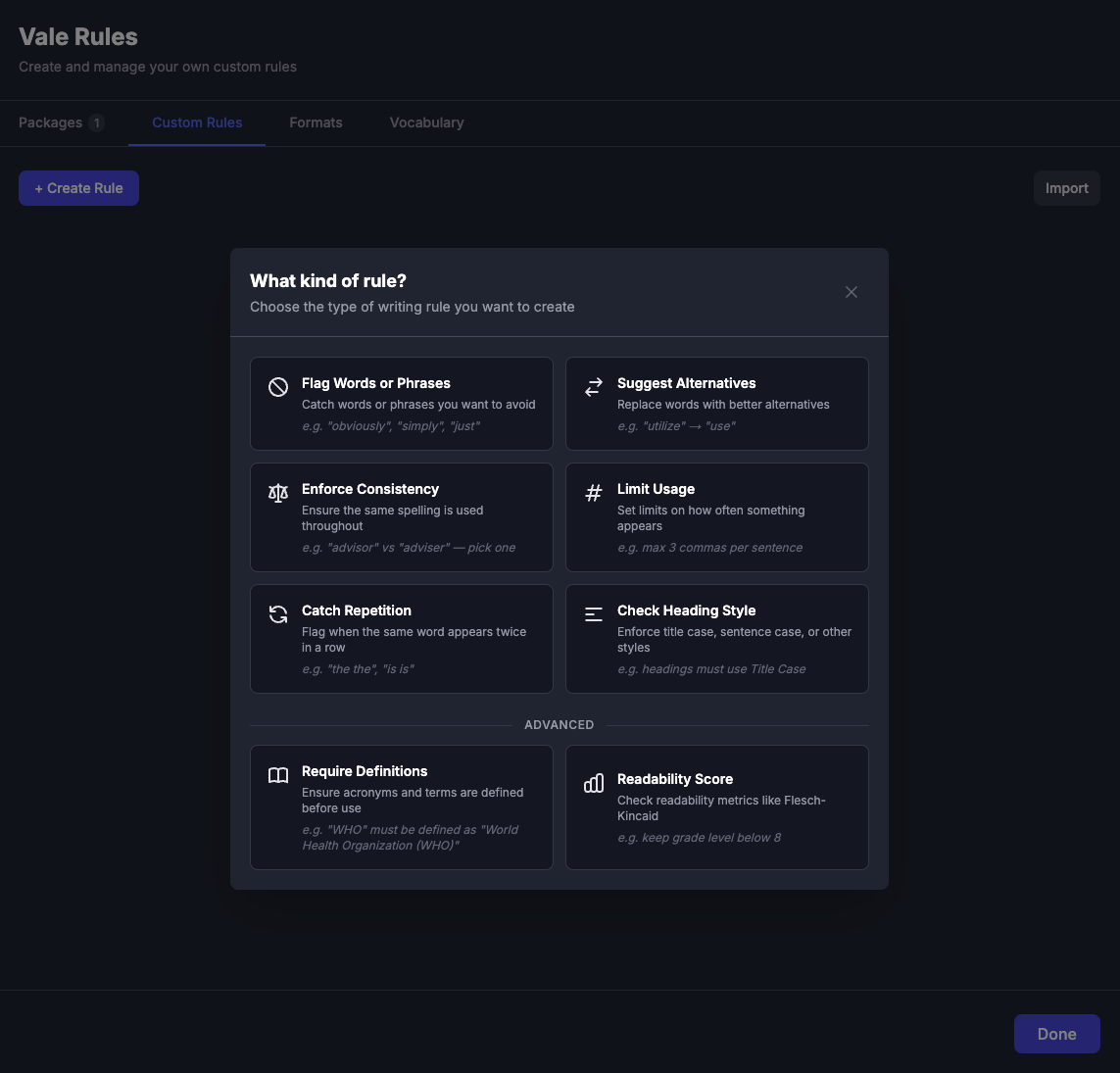
Vale supports 8 extension types for custom rules. ProseLint Web surfaces all of them through a visual interface, organized into primary and advanced categories.
Primary rules
Flag Words or Phrases (existence) — Ban specific words or phrases from your writing. When Vale finds a match, it flags it with your custom message.
Rule: Avoid filler words
Words: "obviously", "simply", "just", "clearly"
Message: Avoid using 'obviously' — it can sound dismissive.
Suggest Alternatives (substitution) — Map words to better replacements. Vale flags the original and suggests the preferred term.
Rule: Preferred terminology
"utilize" → "use"
"leverage" → "use"
"in order to" → "to"
Message: Use 'use' instead of 'utilize'.
Enforce Consistency (consistency) — When a document uses two variant spellings, Vale flags the inconsistency and asks you to pick one.
Rule: Consistent spelling
"advisor" vs "adviser"
"gray" vs "grey"
"canceled" vs "cancelled"
Message: Inconsistent spelling of 'advisor'.
Limit Usage (occurrence) — Set a maximum number of times a pattern can appear in a given scope (sentence, paragraph, or document).
Rule: Limit comma usage
Pattern: commas
Max: 3 per sentence
Message: Too many commas in this sentence.
Catch Repetition (repetition) — Flag when the same word appears consecutively.
Rule: Repeated words
Flags: "the the", "is is", "to to"
Message: 'the' is repeated!
Check Heading Style (capitalization) — Enforce title case, sentence case, lowercase, or uppercase on headings.
Rule: Sentence case headings
Style: sentence
Scope: heading
Message: 'Getting Started Guide' should be in sentence case.
Advanced rules
Require Definitions (conditional) — Ensure that acronyms and abbreviations are defined before their first use. Common acronyms like API, URL, and HTML are excluded by default.
Rule: Acronym definitions
First use: WHO
Required: "World Health Organization (WHO)" must appear in the document
Message: 'WHO' has no definition.
Readability Score (metric) — Check readability against formulas like Flesch-Kincaid, Gunning Fog, Coleman-Liau, Automated Readability Index, or SMOG. Set a threshold and Vale flags content that exceeds it.
Rule: Readability target
Formula: Flesch-Kincaid Grade Level
Threshold: grade level below 8
Message: The Flesch-Kincaid grade level (10.2) is too high.
How the visual builder works
Creating a rule takes three steps:
1. Pick a rule type
Open the Packages modal, go to the My Rules tab, and click Create Rule. A picker shows all 8 rule types with descriptions and examples. Primary rules appear first; advanced rules are in a separate section.
2. Fill in the fields
Each rule type has a focused form. For a substitution rule, you enter word pairs. For a readability rule, you pick a formula and set a threshold. Every form includes:
- Rule name — a descriptive identifier
- Severity — suggestion, warning, or error
- Message — the text shown when the rule triggers
- Type-specific fields — the words, patterns, or thresholds for that check type
3. Save and lint
Click Save, and the rule takes effect immediately. ProseLint Web re-lints your document with the new rule active. No page refresh, no restart — instant feedback.
Managing custom rules
The My Rules tab gives you full control over your rules after creation:
Toggle on/off — Temporarily disable a rule without deleting it. Useful when a rule is noisy during early drafting but valuable during final review.
Edit — Reopen any rule in the builder to change its words, severity, message, or any other field.
Delete — Remove a rule permanently.
Export — Download a single rule as a .yml file, or export all rules as a .zip archive. The exported files are standard Vale YAML, fully compatible with the Vale CLI and other tools in the Vale ecosystem.
Import — Bring in .yml or .yaml files from your file system. ProseLint Web detects the check type automatically, so you can import rules written for the Vale CLI without modification. You can import up to 50 files at once, each up to 100 KB.
Sharing rules across a team
The import/export workflow makes it straightforward to standardize rules across a team:
- One person creates rules in ProseLint Web's visual builder
- Export all rules as a zip file
- Share the zip with the team (Slack, email, shared drive)
- Team members import the rules into their own ProseLint Web session
Since exported rules are standard Vale YAML, they also work with the Vale CLI, VS Code extension, and CI pipelines. Rules created in ProseLint Web's visual builder are portable across the entire Vale ecosystem — the browser is just a more accessible way to author them.
Limits
ProseLint Web supports up to 200 custom rules per session. Rules are stored locally in your browser's IndexedDB, so they persist across sessions without requiring an account or server storage.
Combining custom rules with Vale packages
Custom rules work alongside Vale's published style guide packages. If you have the Microsoft Writing Style Guide package enabled and a custom rule that flags "leverage," Vale runs both together during linting. Package rules and custom rules appear in the same issues panel with the same filtering and quick-fix capabilities.
This layered approach reflects how Vale is designed to work — you start with a solid foundation from a published style guide and add targeted rules for your specific needs. ProseLint Web just makes the "add targeted rules" step easier by removing the YAML authoring step.
Try it
Open the ProseLint Web editor, click the Packages button, and go to the My Rules tab to create your first custom rule. Start with something concrete — a word your team should stop using, or a pair of terms that should be consistent — and see the result in seconds.
Resources
- Vale — the open-source linter that powers ProseLint Web
- Vale custom styles documentation — deep dive into Vale's check types and YAML syntax
- ProseLint Web editor — access Vale's custom rule engine in the browser
- Part 2: Format-aware linting and scope filtering — next in the v0.2.0 series
- Part 3: Custom vocabulary — accept and reject word lists
Lint your docs for free
Browser-based Vale linting. No install, no sign-up, 100% private.
Open ProseLint WebGet it reviewed without GitHub friction
Share docs PRs with anyone for review. GitHub account optional.
Try DraftView free