Custom Vocabulary: Accept and Reject Word Lists in ProseLint Web
Every documentation team has words that linters get wrong. "Kubernetes" gets flagged as a spelling error. "ProseLint" triggers a capitalization warning. "OAuth" is treated as an undefined acronym. These are not mistakes — they are terms your linter does not know about yet.
On the other side, every team has words that should never appear in their docs. An old product name that was retired two years ago. A colloquialism that does not belong in technical writing. A competitor's trademark that legal wants flagged every time.
Vale handles both cases through its vocabulary system — accept and reject word lists that override linting rules. ProseLint Web v0.2.0 brings this Vale feature to the browser. An accept list tells Vale to never flag specific words. A reject list tells Vale to always flag them. You manage both directly in the UI instead of editing text files on disk.
This is Part 3 of a three-part series on v0.2.0 features. Part 1 covers custom rules, and Part 2 covers format-aware linting and scope filtering.
Vale's accept list
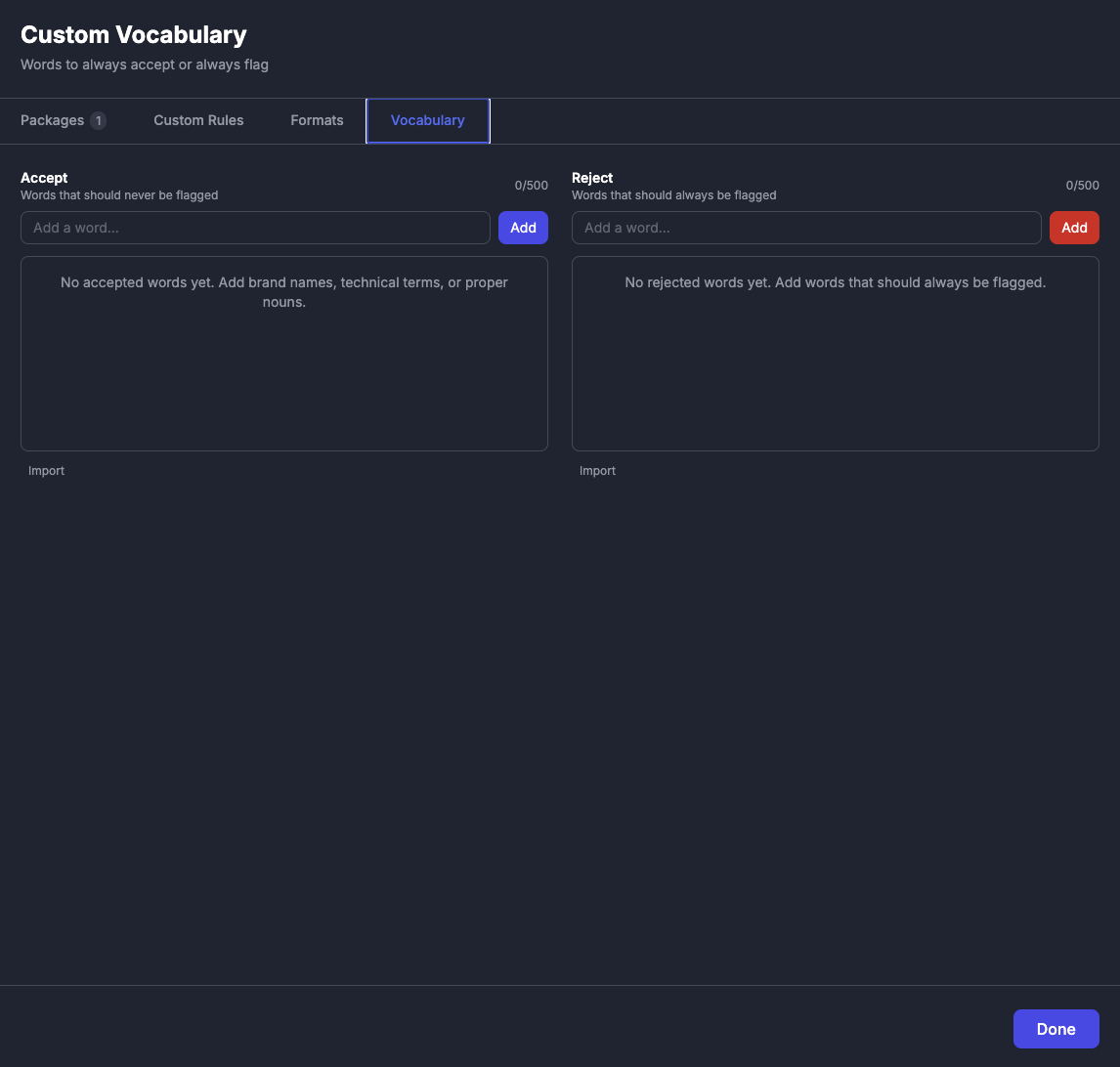
Vale's accept list contains words that should never be flagged by any rule. When a word is on the accept list, Vale treats it as a known, valid term and skips it during linting. ProseLint Web lets you manage this list visually.
When to use the accept list
Brand and product names — Proper nouns specific to your organization that general dictionaries do not include.
Kubernetes
ProseLint
OAuth
GraphQL
Vercel
Technical terms — Domain-specific vocabulary that spell checkers and style guides do not recognize.
webhook
microservices
containerization
idempotent
sharding
Acronyms and abbreviations — Short forms that are standard in your field but trigger "undefined acronym" or spelling rules.
gRPC
OIDC
mTLS
RBAC
CRD
Project-specific terminology — Internal names, codenames, or conventions unique to your organization.
Acme
ProjectX
DataPipeline
RunBook
How it works
When you add a word to the accept list, ProseLint Web passes it to Vale's configuration as an AcceptedToken — the same mechanism used in Vale's .vale.ini file and vocabulary directories. Vale then excludes that token from all rules that would otherwise flag it — spelling checks, capitalization rules, existence rules, and any other check that matches on the token text.
The accept list is case-sensitive. Adding "Kubernetes" prevents that exact form from being flagged, but "kubernetes" (lowercase) would still be caught if a capitalization rule flags it. Add both forms if you need case-insensitive acceptance.
Vale's reject list
The reject list is the inverse: words that should always be flagged, regardless of what any style guide package says. If a word is on the reject list, Vale flags it every time it appears.
When to use the reject list
Deprecated terminology — Old product names, retired features, or outdated terms that should no longer appear in your documentation.
Acme Cloud v1
legacy dashboard
master/slave
Banned words — Terms your style guide explicitly prohibits, such as overly casual language or jargon that confuses your audience.
irregardless
synergize
leverage (as a verb)
Competitor references — Trademarked names or product references that legal or marketing teams want flagged for review.
Internal-only terms — Codenames or internal jargon that should never appear in customer-facing documentation.
Project Falcon
codefreeze
hotfix-branch
How it works
Words on the reject list are passed to Vale's configuration as RejectedTokens. Vale flags every occurrence with an error-level severity, ensuring these terms are never missed during review.
The reject list catches exact matches. Adding "irregardless" flags that specific word. It does not flag "regardless" or other partial matches.
Adding words
There are three ways to add words to your vocabulary:
Type and add
Open the Packages modal, go to the Vocabulary tab, and type a word into the accept or reject input field. Press Enter or click the Add button. The word appears as a removable chip, and ProseLint Web re-lints your document immediately.
Import from a text file
Click the Import button next to either list and select a .txt file. The file should contain one word per line:
Kubernetes
OAuth
GraphQL
gRPC
ProseLint
ProseLint Web reads the file, deduplicates against your existing list, and adds the new words. You can import files up to 500 KB.
Remove words
Click the X on any word chip to remove it from the list. You can also clear an entire list at once using the Clear All button.
Exporting and sharing vocabulary
Both lists can be exported as plain text files — accept.txt and reject.txt — with one word per line. This makes vocabulary portable:
- Share a company-wide accept list so every writer uses the same approved terminology
- Distribute a reject list to enforce banned terms across a documentation team
- Back up your vocabulary before clearing the browser's storage
- Use the same word lists with the Vale CLI by placing them in your Vale vocabulary directory
The text file format matches the format Vale uses natively for its vocabulary files. No special syntax, no YAML, no JSON — just one word per line. This makes it easy to move vocabulary between ProseLint Web and the Vale CLI, or version-control the files alongside your documentation.
How Vale's vocabulary interacts with style guide packages
Vale's vocabulary system works alongside its style guide packages, and the interaction is straightforward:
Accept list overrides package rules. If the Microsoft Writing Style Guide flags "Kubernetes" as a spelling error, adding "Kubernetes" to your accept list silences that specific flag. The rest of the Microsoft package continues to function normally.
Reject list adds to package rules. If no package flags "irregardless" but you add it to your reject list, Vale catches it. The reject list supplements your style guide packages with additional checks.
This layered approach is how Vale is designed to work — vocabulary acts as an override layer on top of style guide packages. ProseLint Web just makes it easier to manage these lists without editing files on disk.
Limits
ProseLint Web supports up to 500 words per list (accept and reject are counted separately). Each word can be up to 100 characters long. Import files are limited to 500 KB.
Vocabulary is stored locally in your browser's IndexedDB, so it persists across sessions without requiring an account or server storage.
Practical example
Consider a team writing documentation for a Kubernetes-based platform called "Skyline":
Accept list:
Skyline
SkylineDB
kubectl
kubeconfig
CronJob
DaemonSet
StatefulSet
Reject list:
Skyline v1
SkylineDB Classic
click here
please note
With this vocabulary configured, the team gets clean linting results: no false positives on product names and infrastructure terms, and immediate flags when someone uses a deprecated product name or a banned phrase.
Try it
Open the ProseLint Web editor, click the Packages button, and go to the Vocabulary tab. Add a few brand names or technical terms to the accept list, lint your document, and see the false positives disappear. Then add a word to the reject list and watch it get flagged instantly.
Resources
- Vale — the open-source linter that powers ProseLint Web
- Vale vocabulary documentation — how Vale handles accepted and rejected tokens
- ProseLint Web editor — manage Vale's vocabulary in the browser
- Part 1: Custom rules — Vale's check types via a visual builder
- Part 2: Format-aware linting and scope filtering — skip shortcodes and HTML elements
Lint your docs for free
Browser-based Vale linting. No install, no sign-up, 100% private.
Open ProseLint WebGet it reviewed without GitHub friction
Share docs PRs with anyone for review. GitHub account optional.
Try DraftView free