Tutorial: Flag Filler Words With a Custom Rule in ProseLint Web
Filler words like "obviously," "basically," and "just" creep into drafts without notice. They rarely add meaning and can make writing sound dismissive or uncertain. In this tutorial you'll create a custom Vale rule that catches six common filler words, then lint a paragraph to see the rule in action — all inside the browser, with no YAML or command-line tools.
What you'll build
A Flag Words or Phrases rule named NoFillerWords that warns whenever your text contains any of these words:
- obviously
- basically
- simply
- just
- clearly
- actually
Prerequisites
Open the ProseLint Web editor in your browser. No account is required — everything runs client-side.
Step 1 — Open the editor
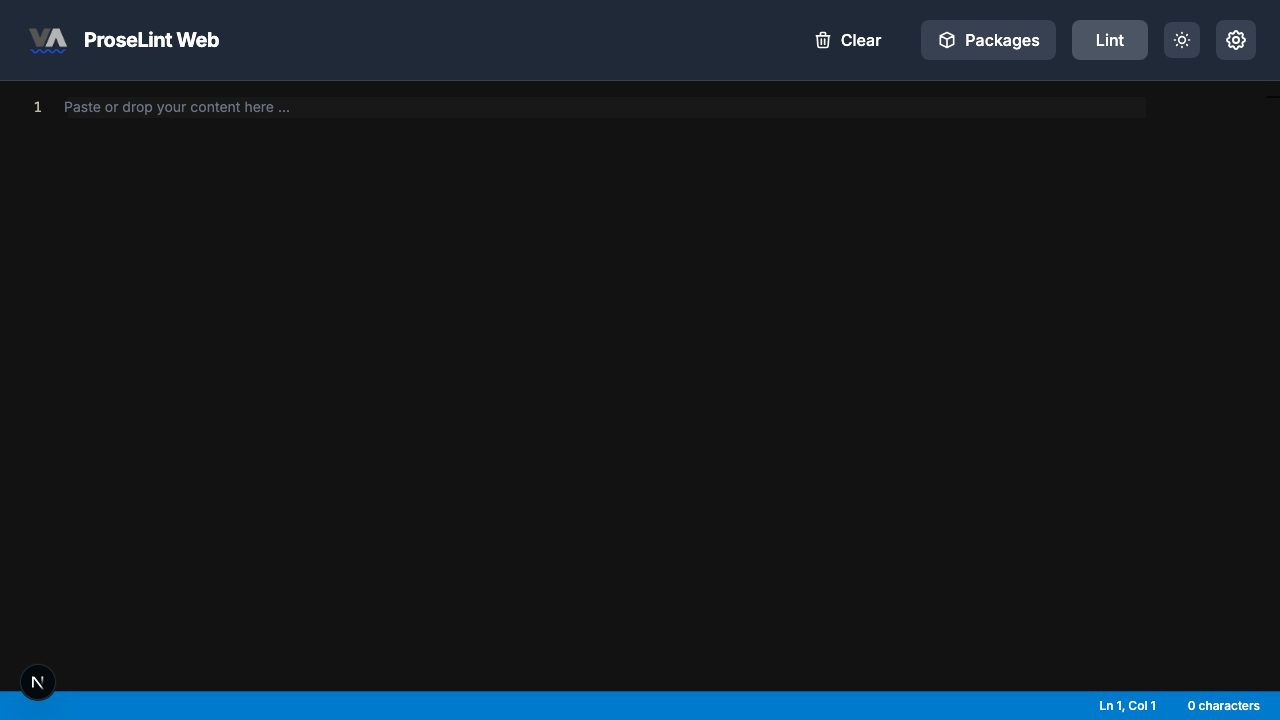
Navigate to the editor. You'll see a clean workspace with a toolbar across the top: Clear, Packages, Lint, and a theme toggle.
Step 2 — Open the Packages modal
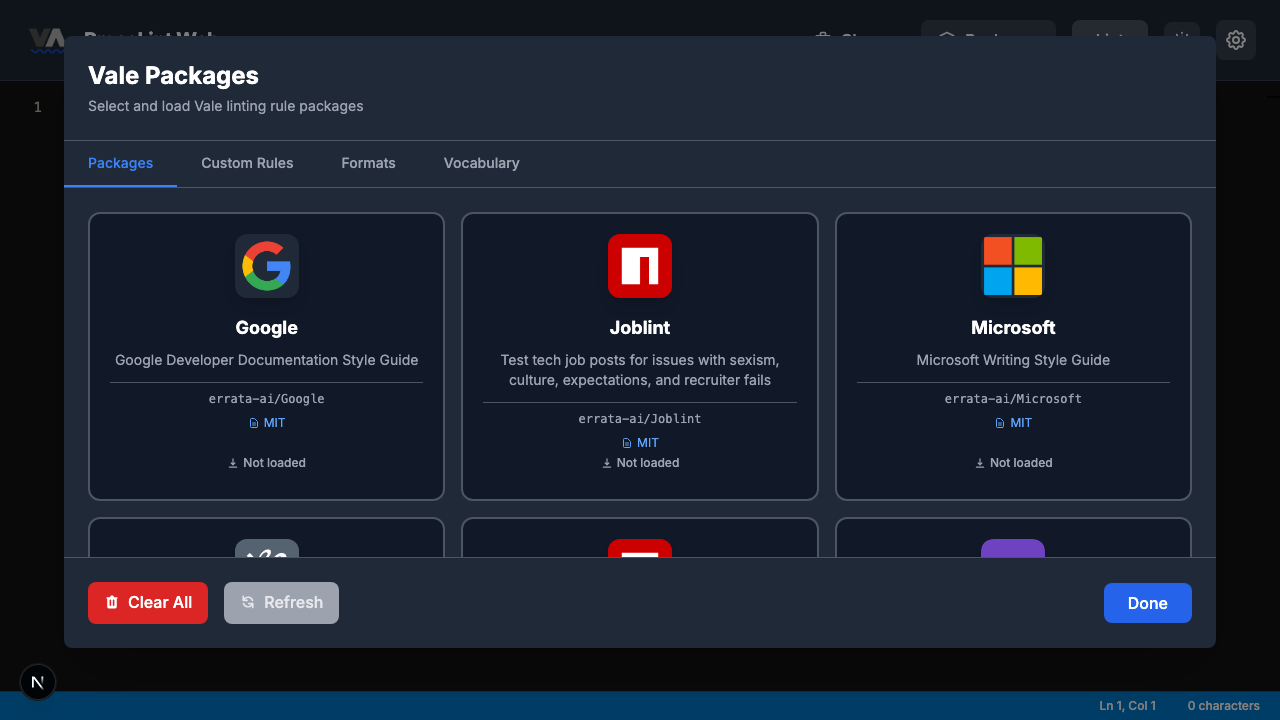
Click the Packages button in the toolbar. The Packages modal opens, showing available Vale style guide packages you can load.
Step 3 — Switch to the Custom Rules tab
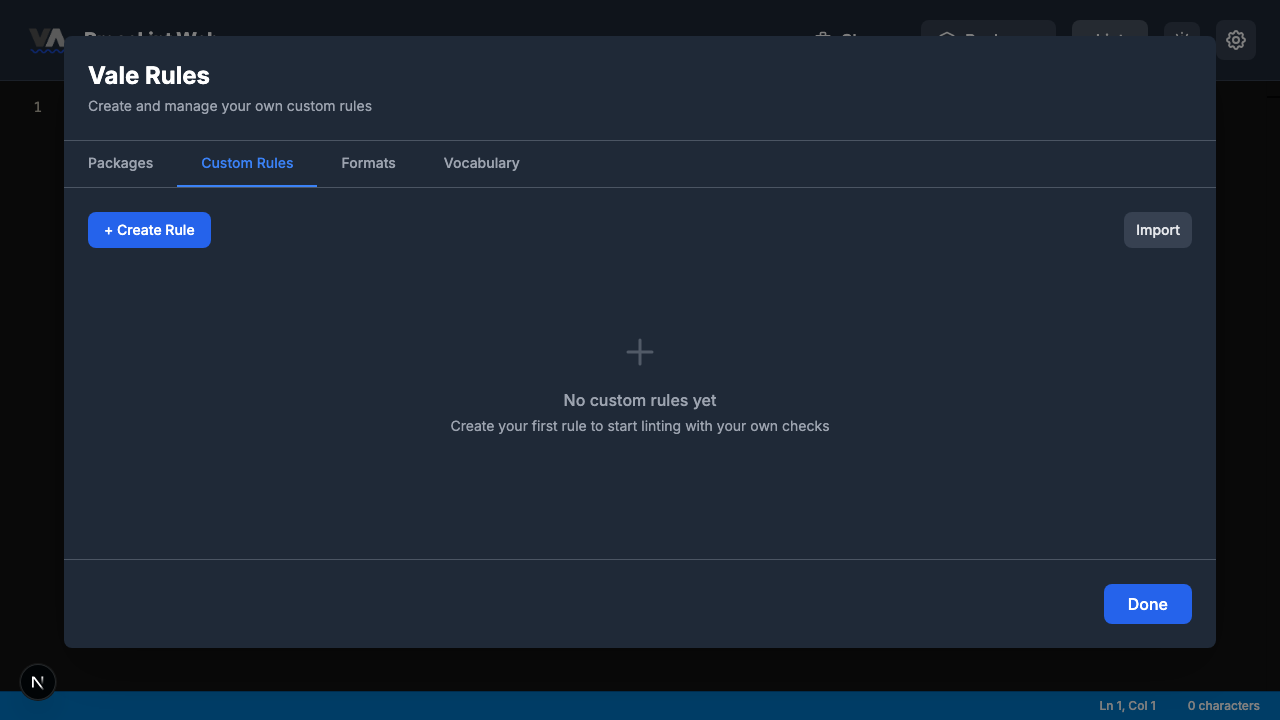
Click the Custom Rules tab at the top of the modal. This tab is where you create, import, and manage your own rules. If you haven't created any rules yet, it will be empty with a + Create Rule button.
Step 4 — Choose a rule type
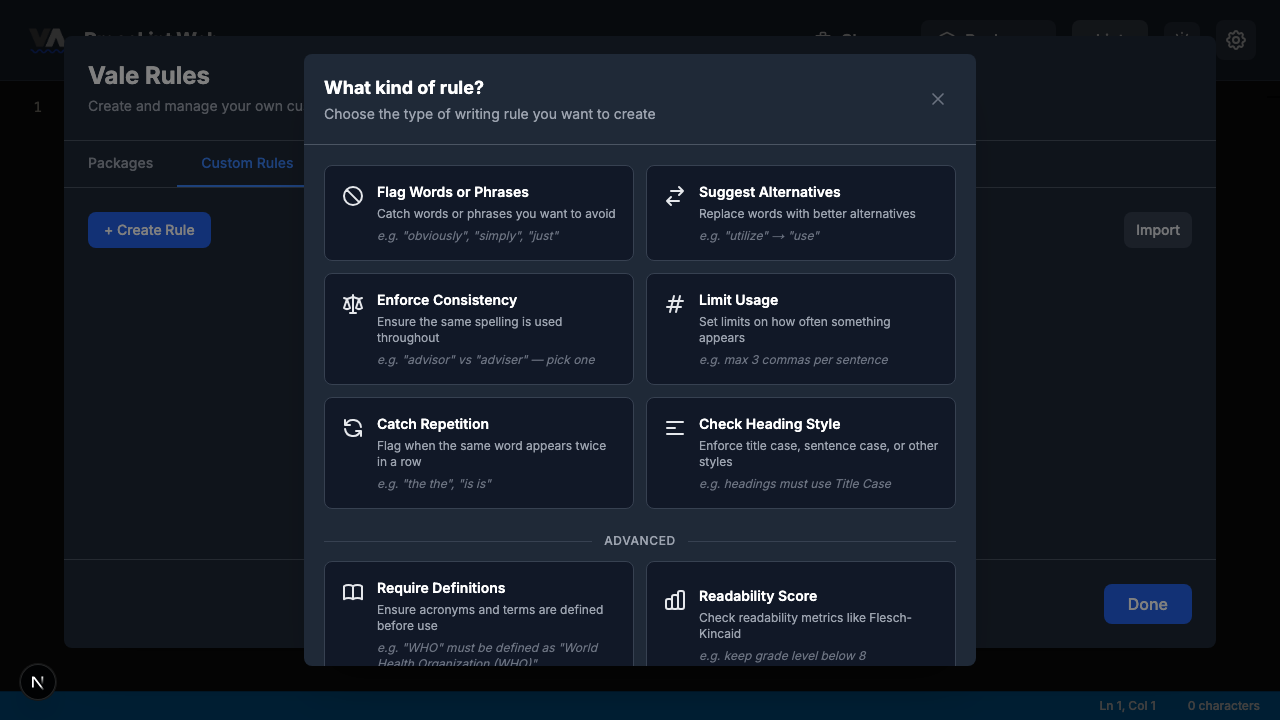
Click + Create Rule. A picker appears showing all eight Vale rule types. Each card includes a short description and an example so you can pick the right one without consulting documentation.
For this tutorial, we want Flag Words or Phrases — the first option. This rule type (Vale's existence check) flags any occurrence of the words you list.
Step 5 — Open the rule builder
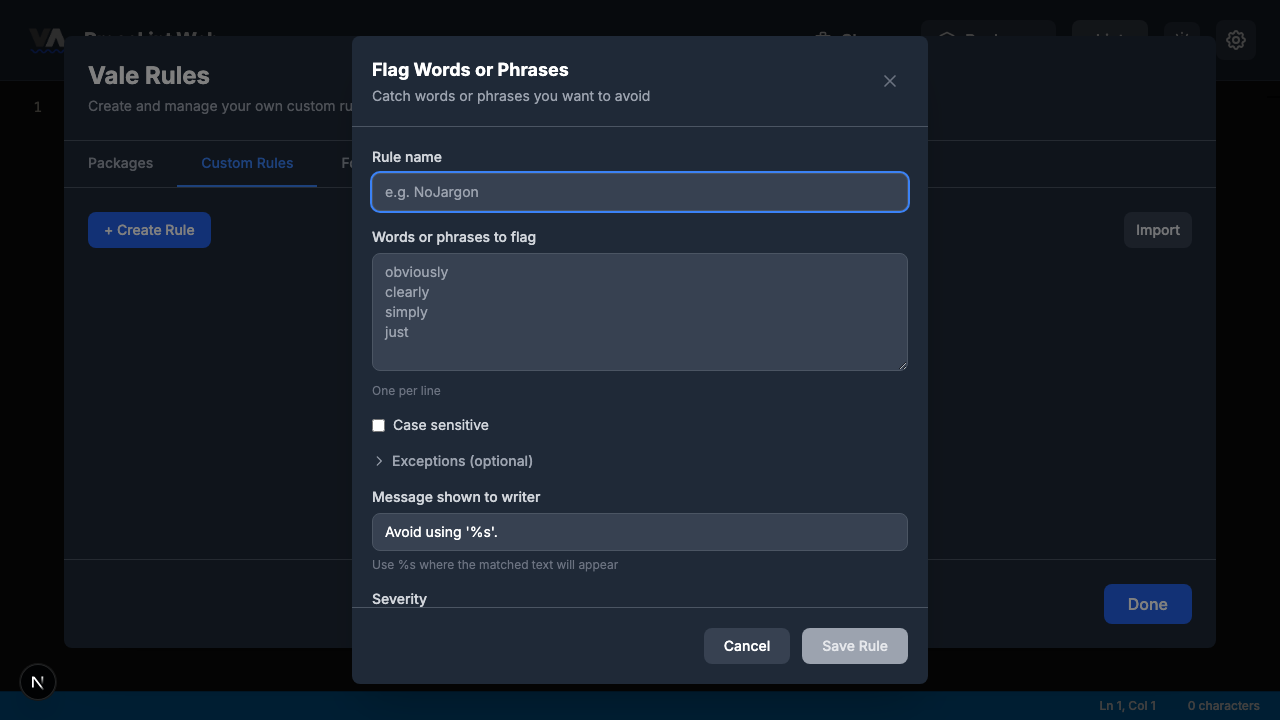
Click Flag Words or Phrases. The rule builder form opens with empty fields ready to fill in.
The form has these sections:
- Rule name — a unique identifier for your rule
- Words or phrases to flag — one word or phrase per line
- Case sensitive — whether matching respects capitalization (unchecked by default)
- Exceptions — words that should be ignored even if they match
- Message shown to writer — the warning text, with
%sas a placeholder for the matched word - Severity — suggestion, warning, or error
Step 6 — Configure the rule
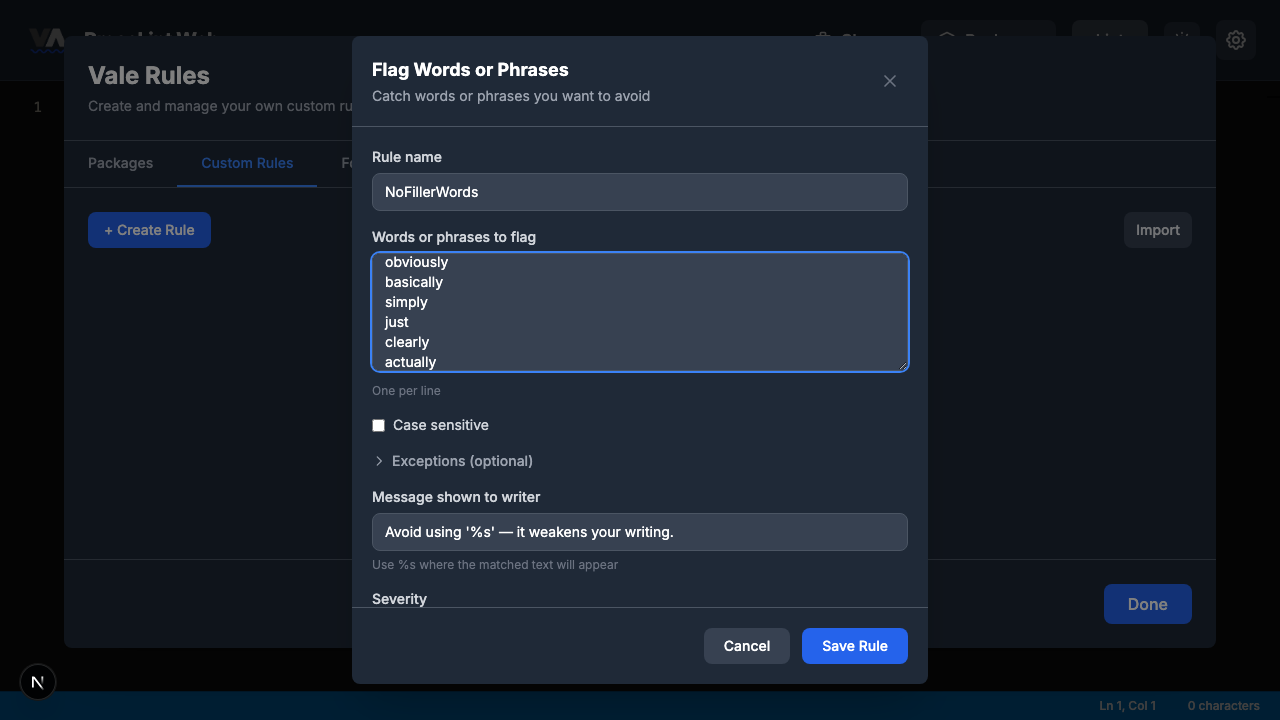
Fill in the fields with these values:
Rule name:
NoFillerWords
Words or phrases to flag (one per line):
obviously
basically
simply
just
clearly
actually
Message shown to writer:
Avoid using '%s' — it weakens your writing.
Severity: Leave at the default Warning.
Case sensitive: Leave unchecked. This means the rule will catch "Obviously" at the start of a sentence as well as "obviously" mid-sentence.
Step 7 — Save the rule
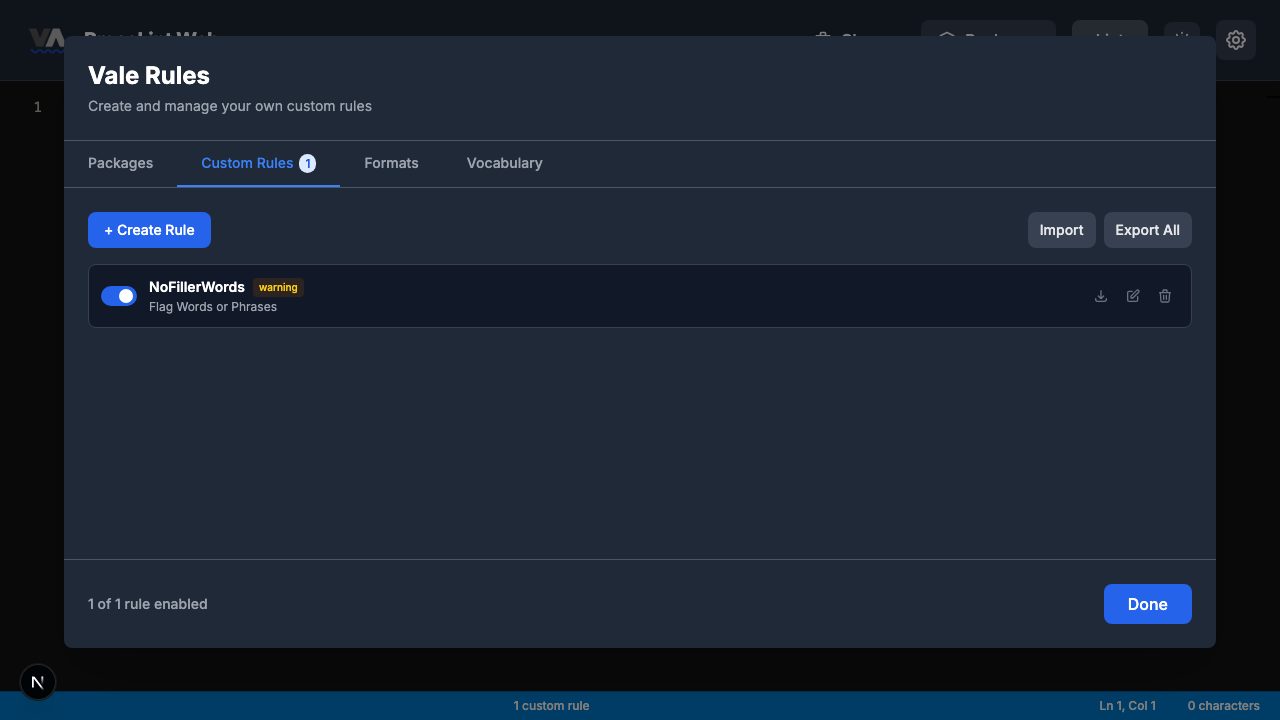
Click Save Rule. The builder closes and you're back on the Custom Rules tab. Your new NoFillerWords rule appears as a card with a toggle (enabled by default), plus buttons to export, edit, or delete it.
Click Done to close the modal and return to the editor.
Step 8 — Write some text
Type or paste the following paragraph into the editor. It deliberately contains all six filler words:
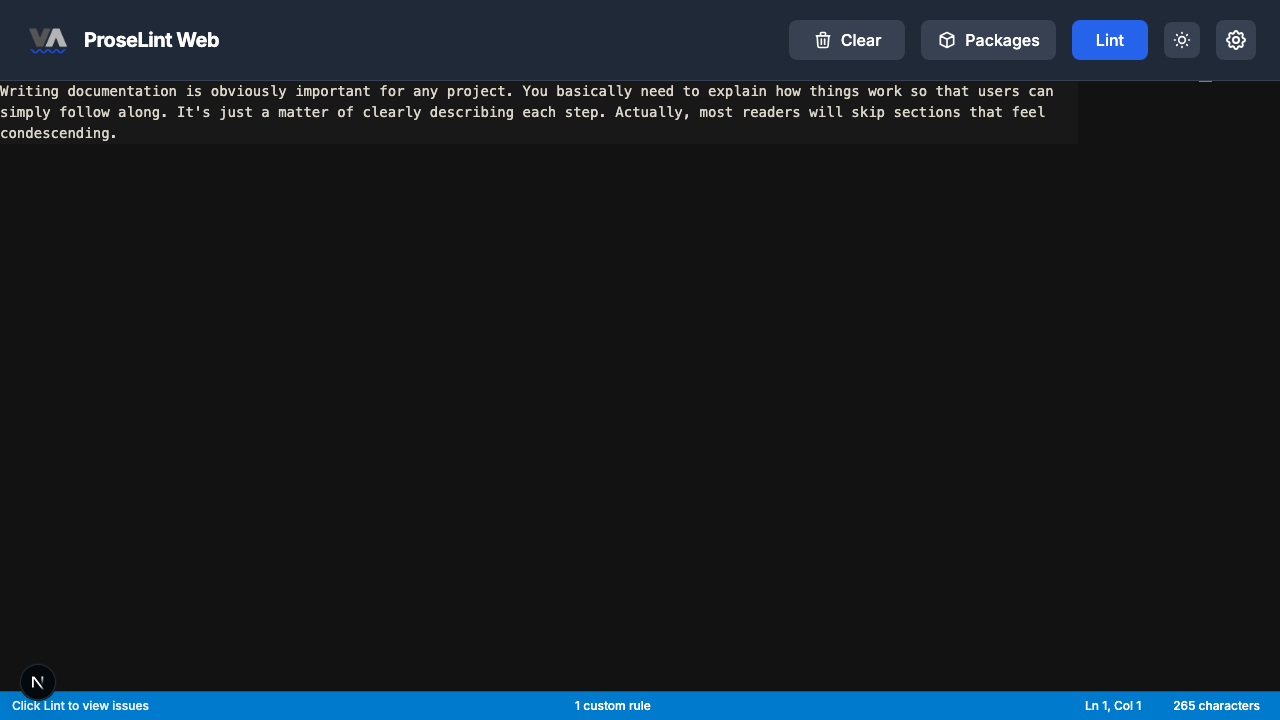
Writing documentation is obviously important for any project. You basically need to explain how things work so that users can simply follow along. It's just a matter of clearly describing each step. Actually, most readers will skip sections that feel condescending.
Notice the status bar at the bottom now shows 1 custom rule — that's your NoFillerWords rule, loaded and ready.
Step 9 — Lint and review results
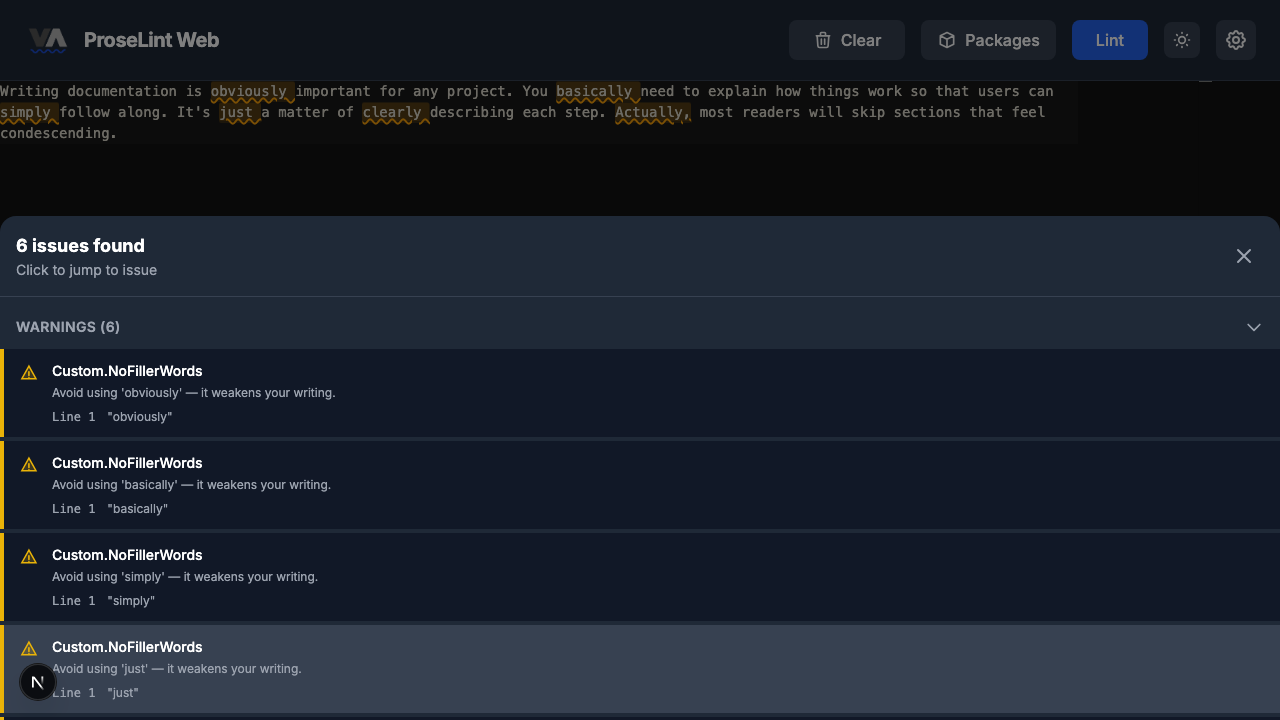
Click the Lint button. ProseLint Web runs Vale with your custom rule active. In a moment you'll see:
- Yellow underlines on each filler word in the editor
- A warning count (6) in the status bar
- A View Issues panel listing every match
Each issue shows the rule name (Custom.NoFillerWords), your custom message with the matched word inserted, and the line number.
All six words — "obviously," "basically," "simply," "just," "clearly," and "Actually" — are flagged. The rule caught "Actually" at the start of a sentence even though we entered "actually" in lowercase, because case-sensitive matching was turned off.
Next steps
You've created a working custom rule in under a minute. Here are some things to try next:
- Edit the rule — click the edit button on the rule card to add more words or change the message.
- Change the severity — switch from Warning to Error if filler words are a hard requirement for your team.
- Add exceptions — maybe "just" is acceptable in certain phrases like "just-in-time." Add it to the exceptions list.
- Export and share — click Export to download the rule as a
.ymlfile. Share it with teammates or import it into the Vale CLI. - Try other rule types — the custom rules overview covers all eight Vale check types available in ProseLint Web, including substitutions, consistency checks, and readability scores.
Resources
- Custom rules overview — deep dive into all 8 rule types
- Custom vocabulary — accept and reject word lists
- Vale documentation — official Vale custom styles reference
- ProseLint Web editor — try it now
Lint your docs for free
Browser-based Vale linting. No install, no sign-up, 100% private.
Open ProseLint WebGet it reviewed without GitHub friction
Share docs PRs with anyone for review. GitHub account optional.
Try DraftView free