Tutorial: Suggest Better Word Choices With a Custom Substitution Rule
Technical writing accumulates jargon. "Utilize" sneaks in where "use" works fine. "Leverage" replaces "use" for no reason. "Prior to" stands in for "before." These substitutions don't add precision — they just make prose harder to read.
In this tutorial you'll create a Suggest Alternatives rule that maps five pieces of jargon to their plain-language equivalents. When Vale finds a match, it tells the writer exactly what to use instead. The whole process takes about a minute and runs entirely in the browser.
This is the second tutorial in our custom rules series. The first covers flagging words and phrases.
What you'll build
A Suggest Alternatives rule named PlainLanguage with these substitution pairs:
| Instead of... | Suggest... |
|---|---|
| utilize | use |
| leverage | use |
| in order to | to |
| prior to | before |
| commence | start |
When Vale encounters any word in the left column, it flags it and suggests the replacement from the right column.
Prerequisites
Open the ProseLint Web editor in your browser. No account or installation required.
Step 1 — Open the Packages modal
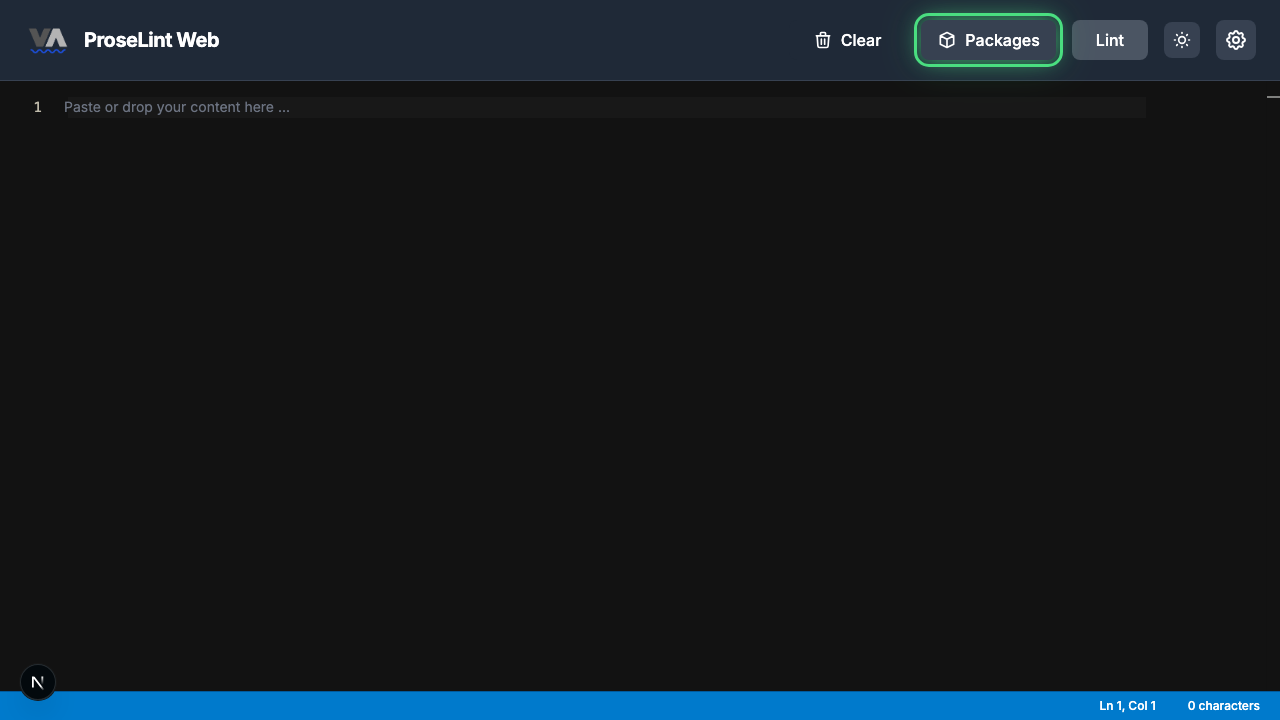
Navigate to the editor and click the Packages button in the toolbar.
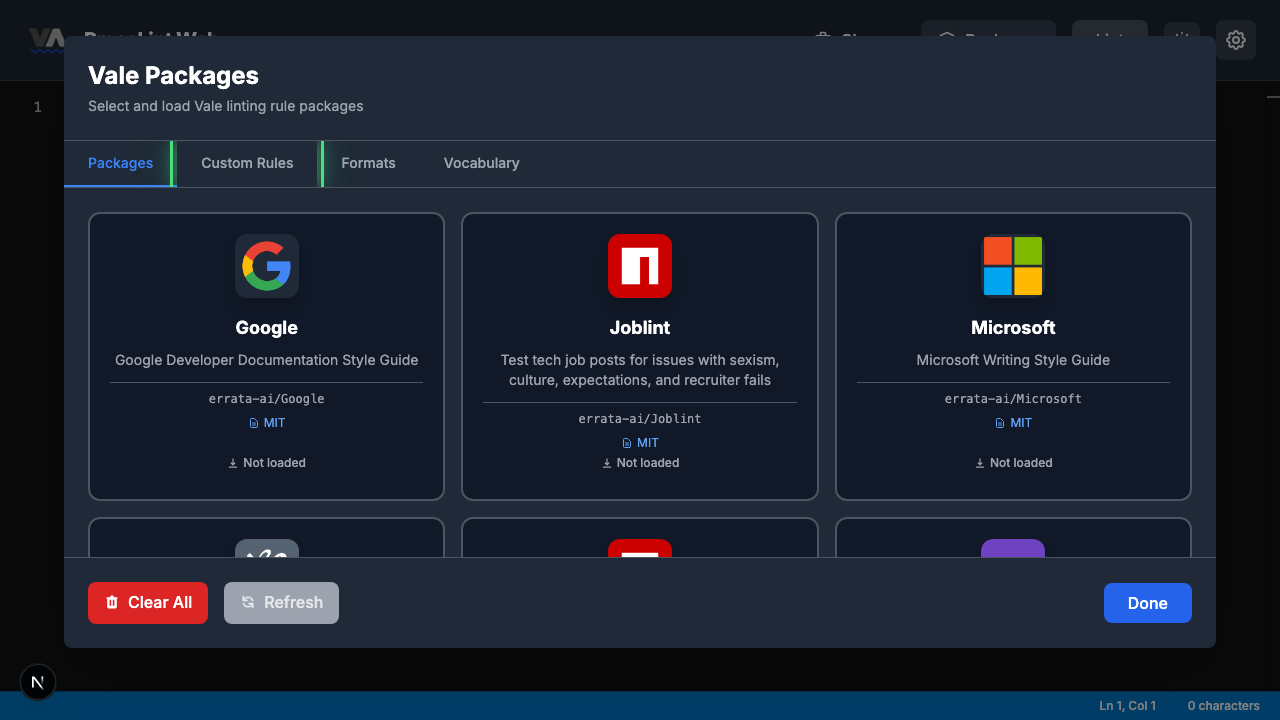
Step 2 — Switch to the Custom Rules tab
The Packages modal opens showing available Vale style guide packages. Click the Custom Rules tab to switch to the rule management view.
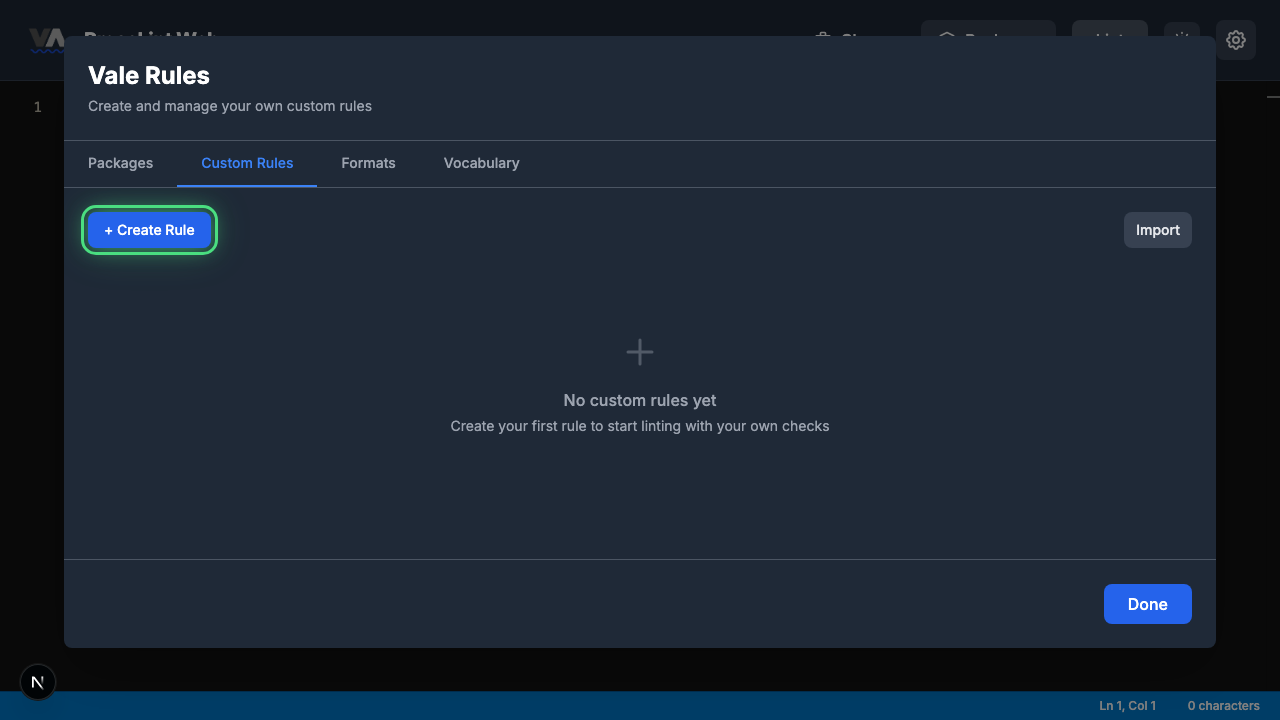
Step 3 — Create a new rule
The Custom Rules tab shows an empty state since no rules exist yet. Click + Create Rule to open the rule type picker.
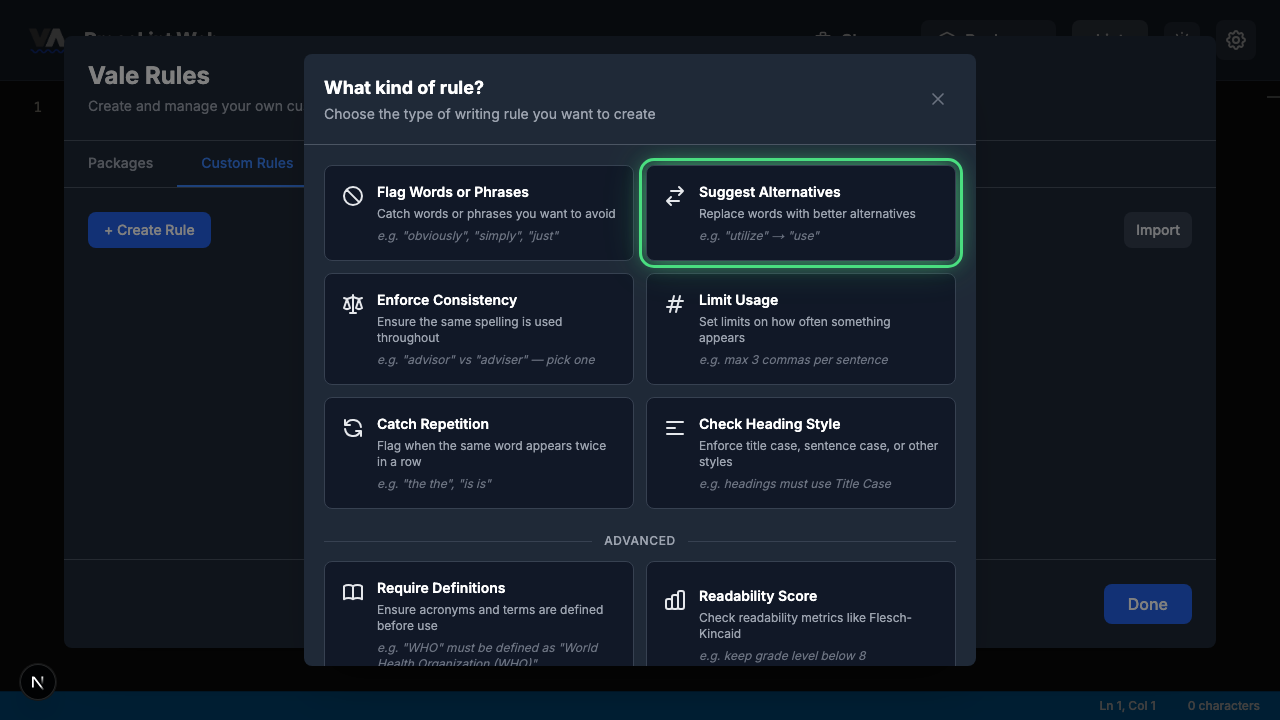
Step 4 — Pick "Suggest Alternatives"
The rule type picker shows all eight Vale check types. Click Suggest Alternatives — this rule type maps words to better replacements and tells the writer what to use instead.
Step 5 — Review the rule builder form
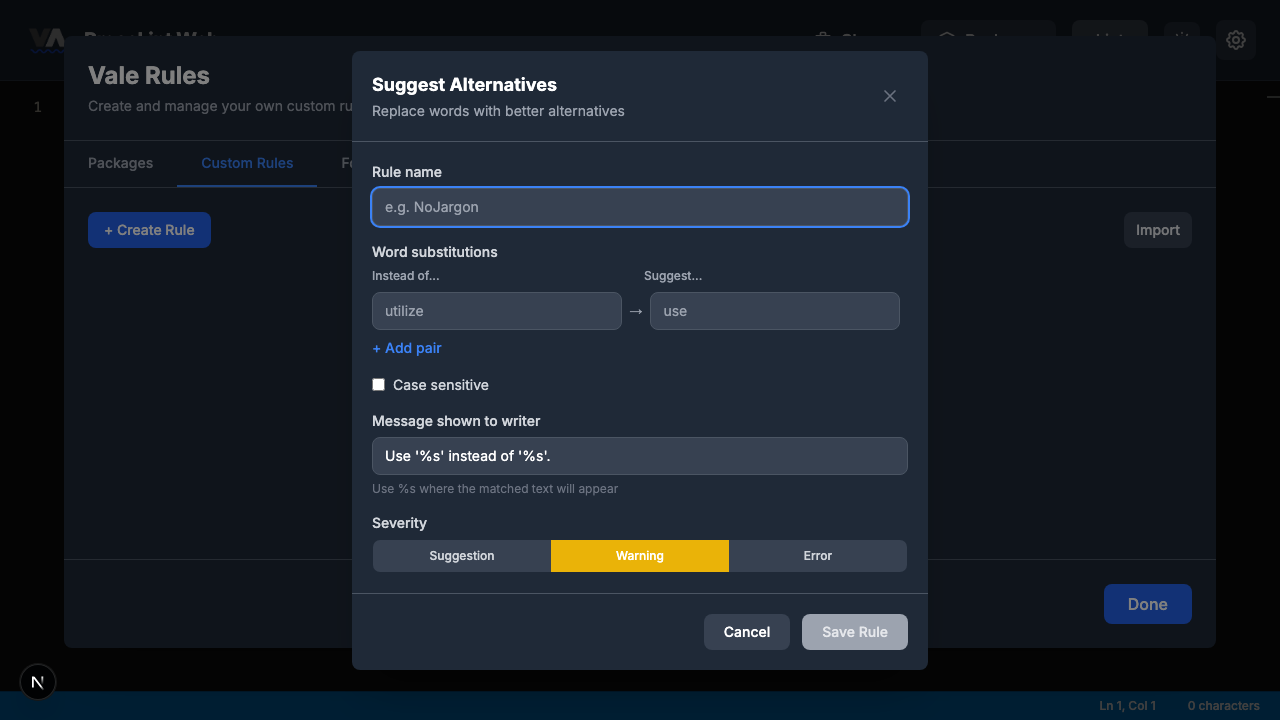
The rule builder opens with one empty substitution pair. The form has these sections:
- Rule name — a unique identifier for your rule
- Word substitutions — pairs of "Instead of..." and "Suggest..." values
- + Add pair — add more substitution pairs
- Case sensitive — whether matching respects capitalization (off by default)
- Message shown to writer — pre-filled with
Use '%s' instead of '%s'. - Severity — suggestion, warning, or error
Step 6 — Fill in the rule and save
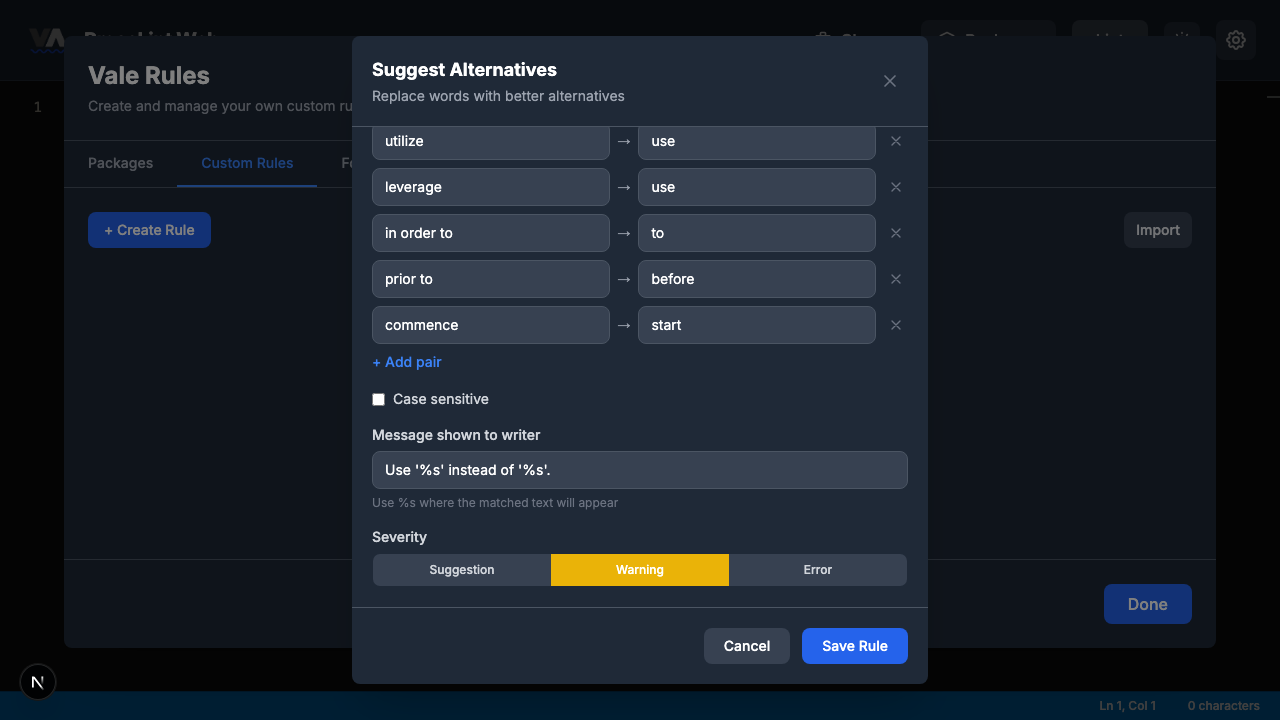
Enter PlainLanguage as the rule name, then fill in the substitution pairs. Click + Add pair to add more rows:
| Instead of... | Suggest... |
|---|---|
| utilize | use |
| leverage | use |
| in order to | to |
| prior to | before |
| commence | start |
Leave the message as the default (Use '%s' instead of '%s'.) and the severity at Warning. Leave Case sensitive unchecked so the rule catches "Prior to" at the start of a sentence as well as "prior to" mid-sentence.
When all pairs are filled in, click Save Rule .
Step 7 — Close the modal
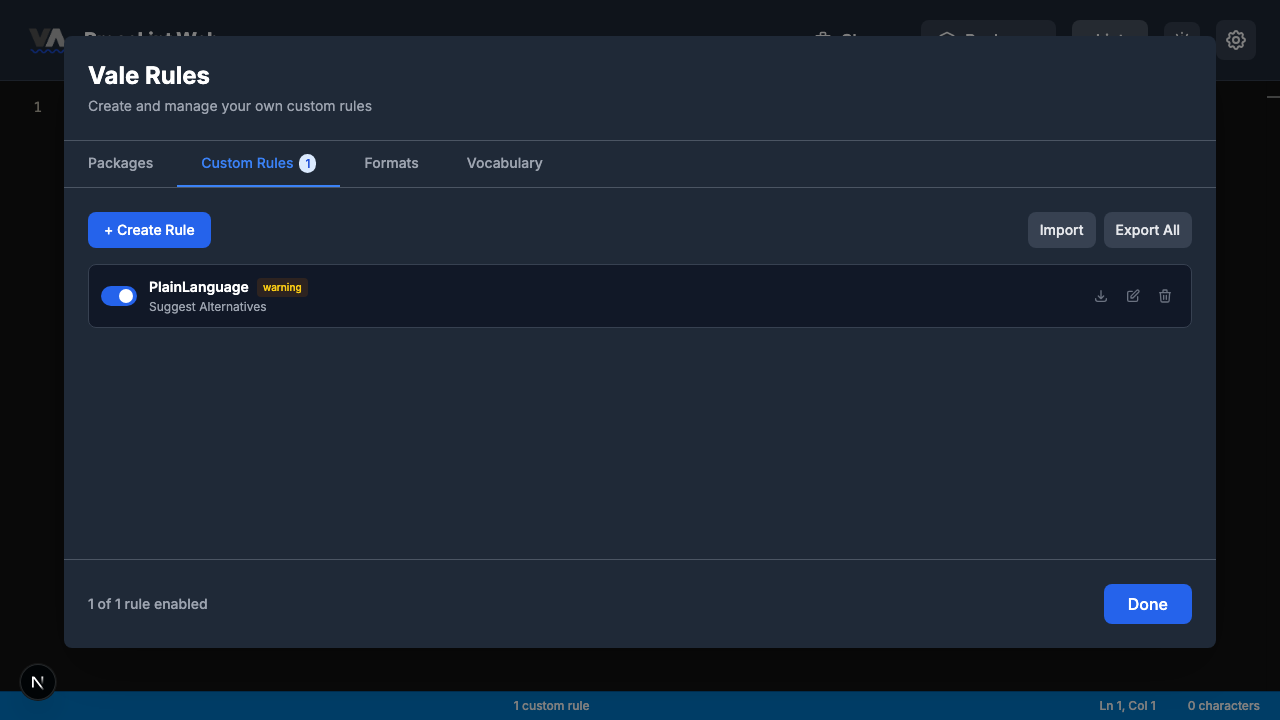
The rule is saved and appears as a card in the Custom Rules tab. The toggle is enabled by default, meaning the rule is active. You also get buttons to export, edit, or delete the rule.
Click Done to close the modal and return to the editor.
Step 8 — Enter some text and lint
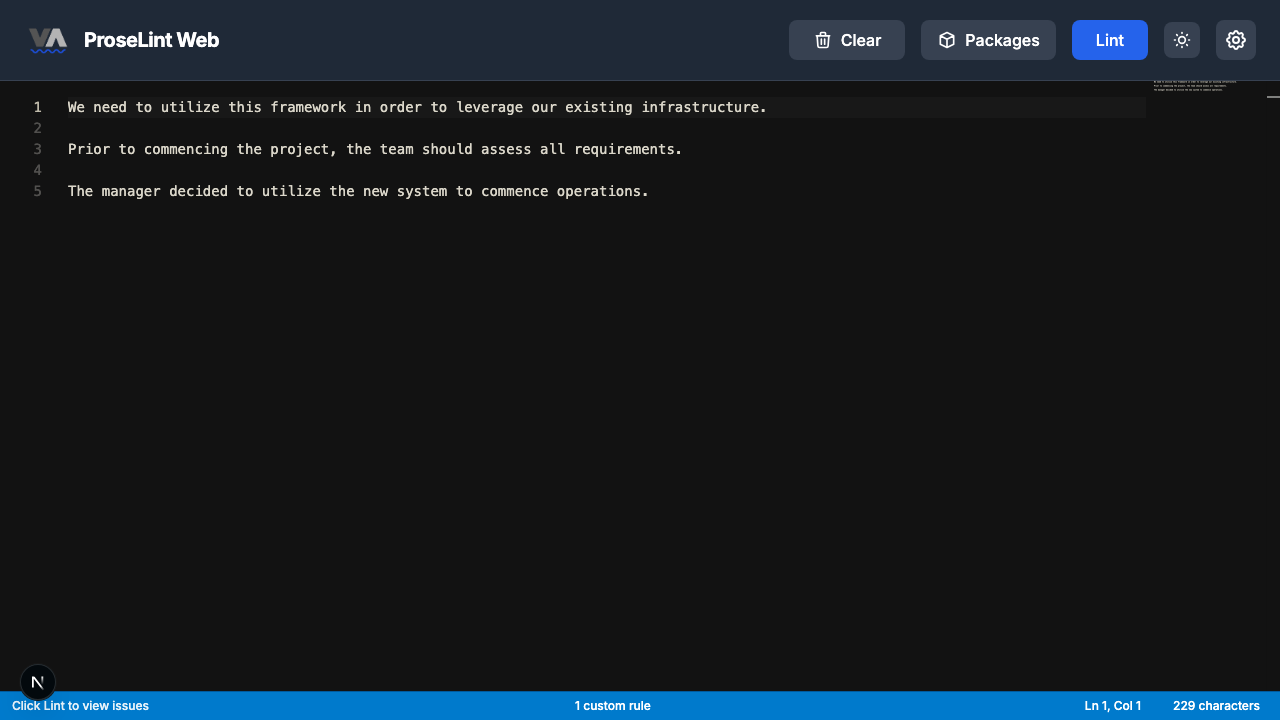
Type or paste this paragraph into the editor. It contains all five jargon words:
We need to utilize the new API in order to leverage the existing infrastructure. Prior to deployment, please commence the integration testing phase.
The status bar confirms 1 custom rule is active. Click the Lint button to run Vale.
Step 9 — Inspect a warning
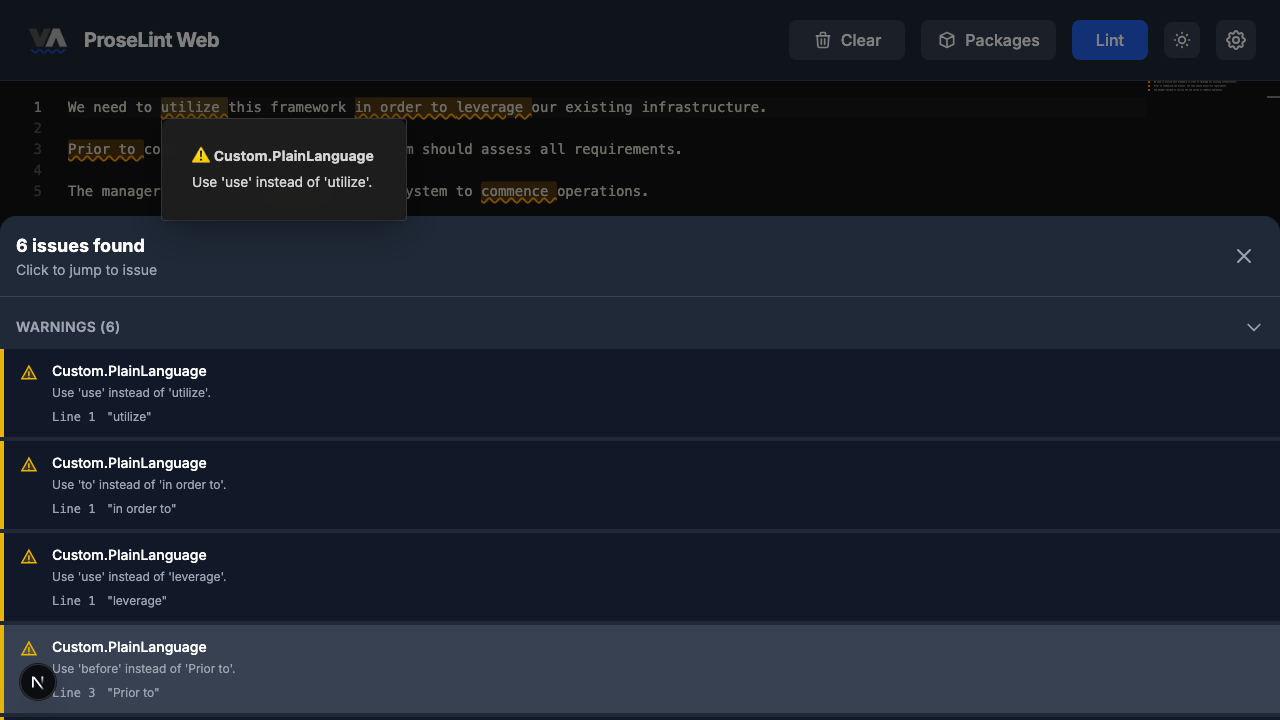
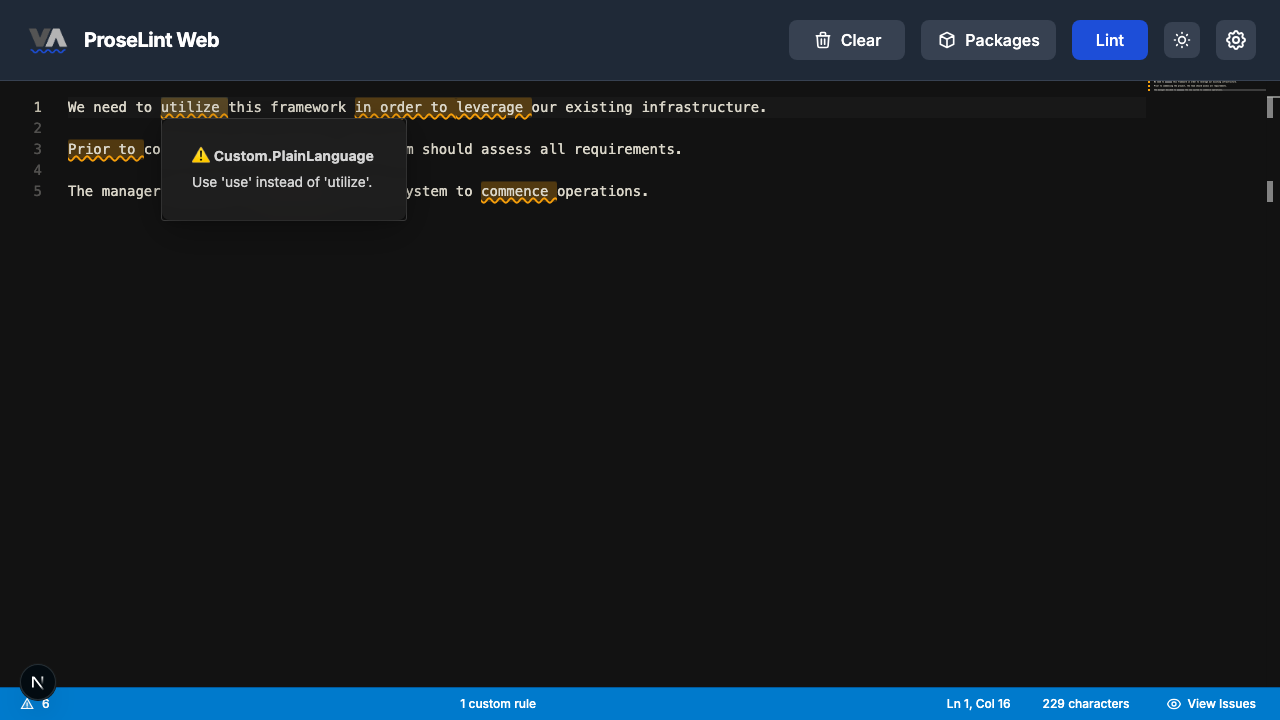
After linting, Vale highlights all five matches with yellow underlines. Hover over a highlighted word (or place your cursor on it) to see the details. A popover appears showing the rule name and the substitution message.
Step 10 — Review all issues
Click View Issues in the status bar to open the issues panel. All five warnings are listed:
- utilize — Use 'use' instead of 'utilize'.
- in order to — Use 'to' instead of 'in order to'.
- leverage — Use 'use' instead of 'leverage'.
- Prior to — Use 'before' instead of 'Prior to'.
- commence — Use 'start' instead of 'commence'.
Notice that "Prior to" was caught even though we entered "prior to" in lowercase — case-insensitive matching handles both forms.
How substitution rules differ from flag rules
In the Flag Words or Phrases tutorial, the rule simply bans words. The substitution rule goes further — it tells the writer what to use instead. This makes the feedback actionable: instead of "don't use this word," the writer sees "use this word instead."
Both rule types support case-insensitive matching, custom messages with %s placeholders, and three severity levels. The key difference is that substitution rules provide a direct replacement, while flag rules only identify the problem.
Next steps
- Expand the rule — add pairs like "aforementioned" → "this", "methodology" → "method", "subsequently" → "then".
- Export and share — click Export on the rule card to download a
.ymlfile compatible with the Vale CLI and other tools. - Combine with style packages — load a package like Microsoft or Google alongside your custom rule for comprehensive coverage.
- Try other rule types — the custom rules overview covers all eight Vale check types.
Resources
- Tutorial: Flag Words or Phrases — the first tutorial in this series
- Custom rules overview — all 8 rule types explained
- Vale documentation — official Vale custom styles reference
- ProseLint Web editor — try it now
Lint your docs for free
Browser-based Vale linting. No install, no sign-up, 100% private.
Open ProseLint WebGet it reviewed without GitHub friction
Share docs PRs with anyone for review. GitHub account optional.
Try DraftView free