Tutorial: Enforce Title Case Headings With a Custom Rule
Inconsistent heading styles make documents look sloppy. One section says "Getting Started," the next says "how to deploy." Readers notice. Style guides universally recommend picking a convention — title case, sentence case, or all-lowercase — and sticking with it.
In this tutorial you'll create a Check Heading Style rule that enforces AP-style title case on all Markdown headings. When a heading doesn't follow title case rules, Vale flags it.
What you'll build
A Check Heading Style rule named TitleCaseHeadings with these settings:
| Setting | Value |
|---|---|
| Headings should use | Title Case |
| Title case style | AP Style |
| Severity | Warning |
AP-style title case capitalizes all words except prepositions of three letters or fewer (a, an, at, by, for, in, of, on, to, etc.).
Prerequisites
Open the ProseLint Web editor in your browser. No account or installation required.
Step 1 — Open the Packages modal
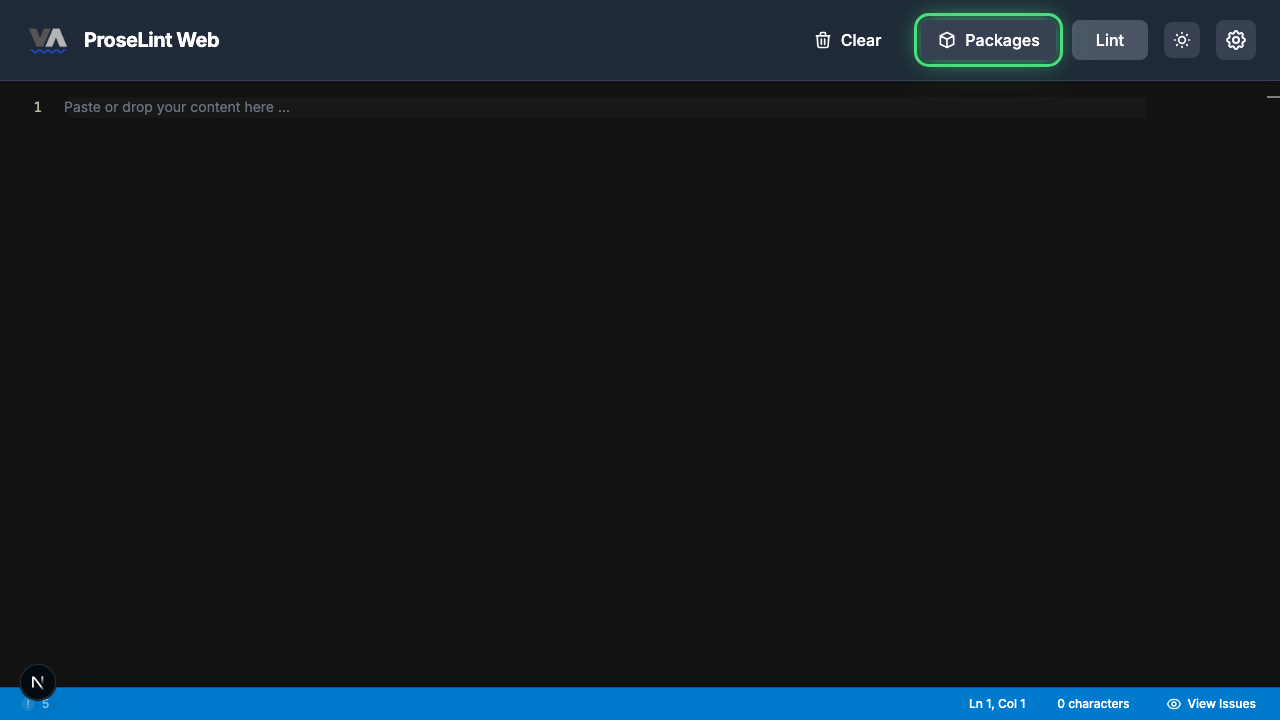
Navigate to the editor and click the Packages button in the toolbar.
Step 2 — Switch to the Custom Rules tab
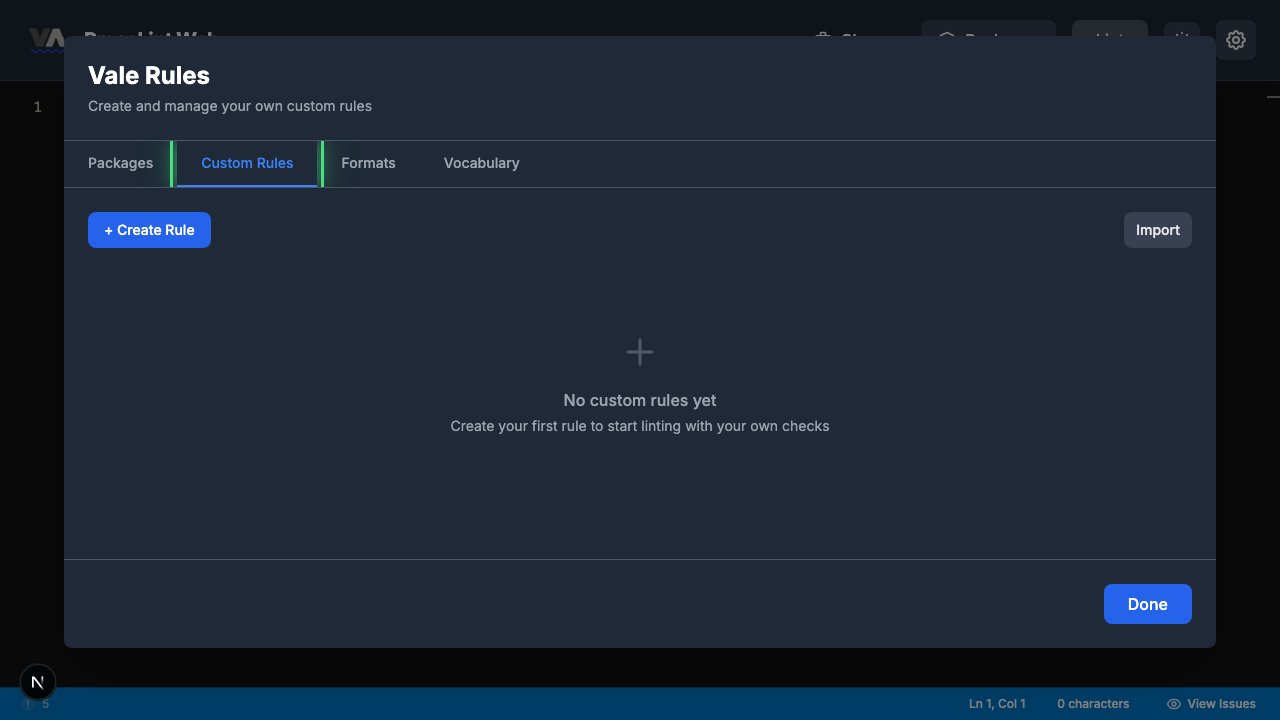
The Packages modal opens showing available style guide packages. Click the Custom Rules tab to switch to the rule management view.
Step 3 — Create a new rule
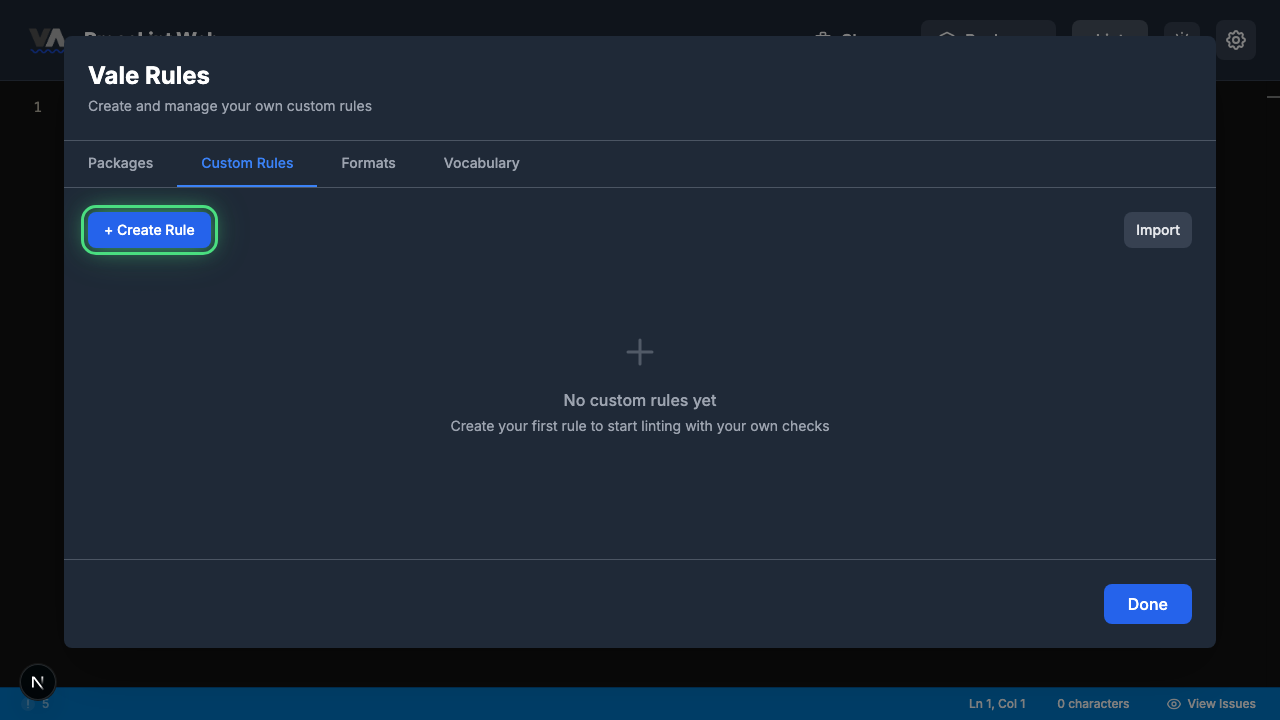
Click + Create Rule to open the rule type picker.
Step 4 — Pick "Check Heading Style"
The rule type picker shows all eight Vale check types. Click Check Heading Style — this rule type enforces capitalization conventions on headings.
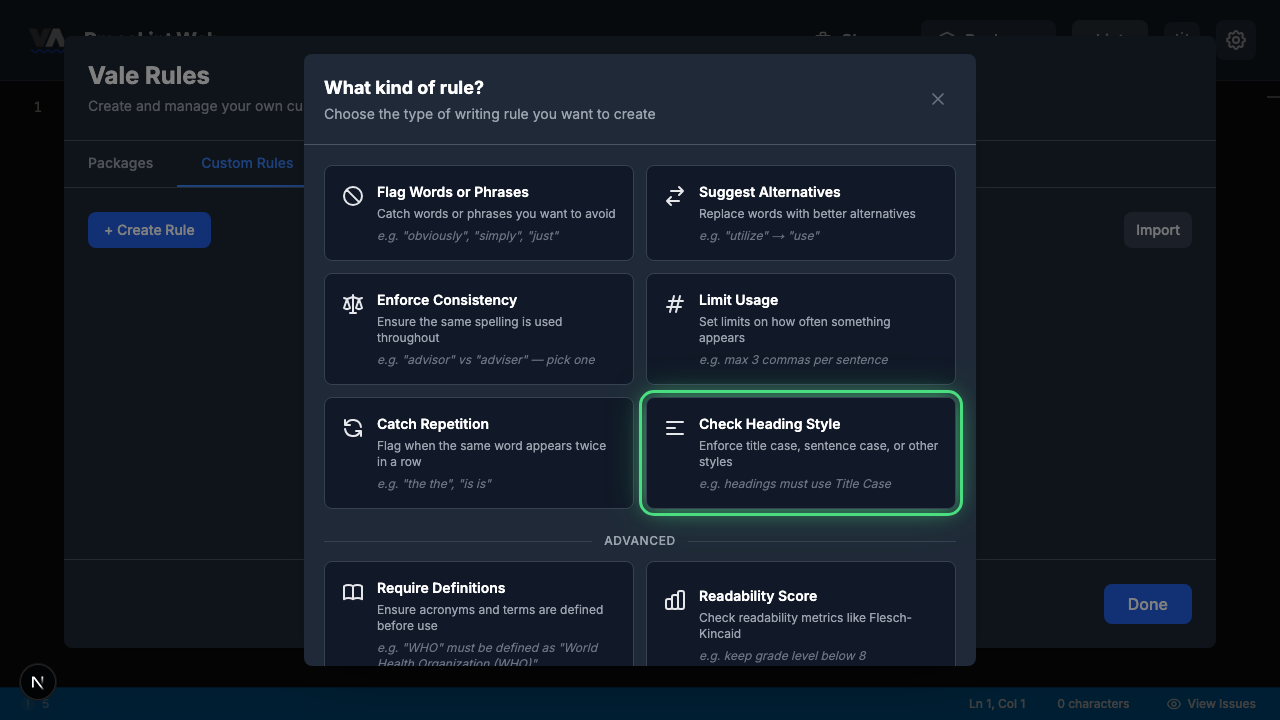
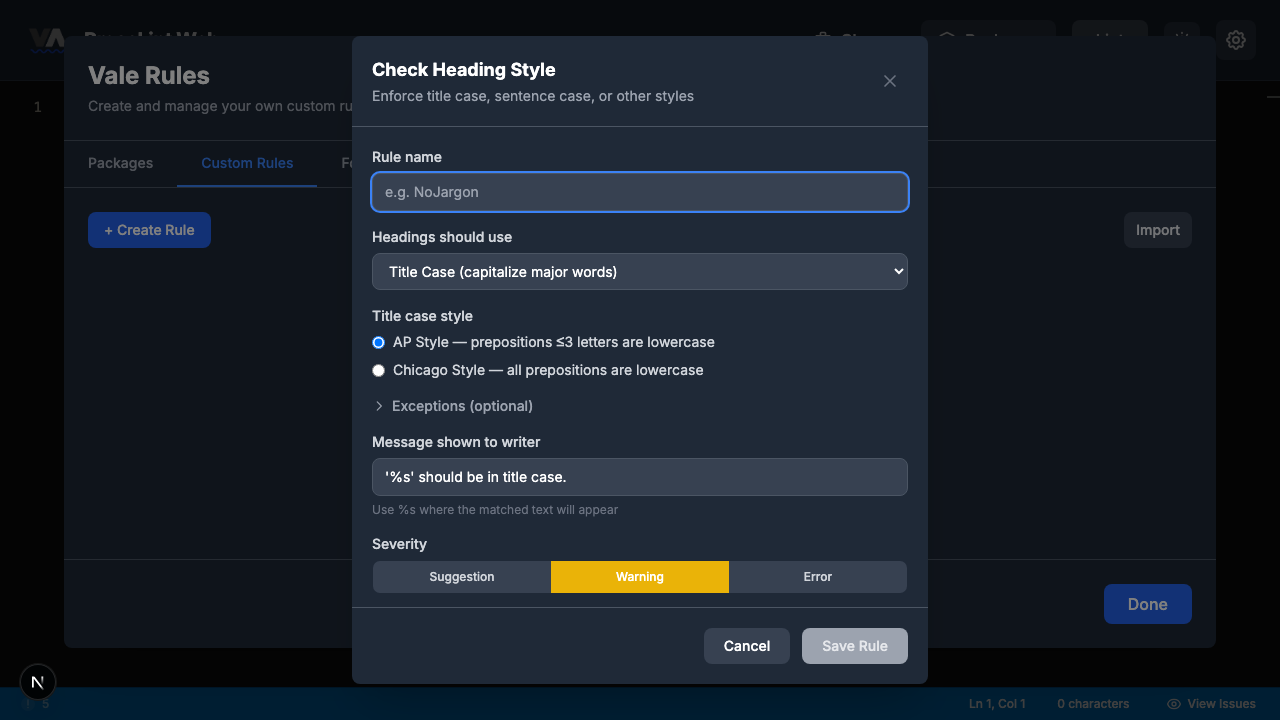
Step 5 — Review the rule builder form
The rule builder opens with title case pre-selected. The form has these sections:
- Rule name — a unique identifier for your rule
- Headings should use — Title Case, Sentence case, lowercase, or UPPERCASE
- Title case style — AP Style or Chicago Style (only shown when Title Case is selected)
- Exceptions — words that don't need to follow the rule (e.g., API, iOS)
- Message shown to writer — pre-filled with
'%s' should be in title case. - Severity — suggestion, warning, or error
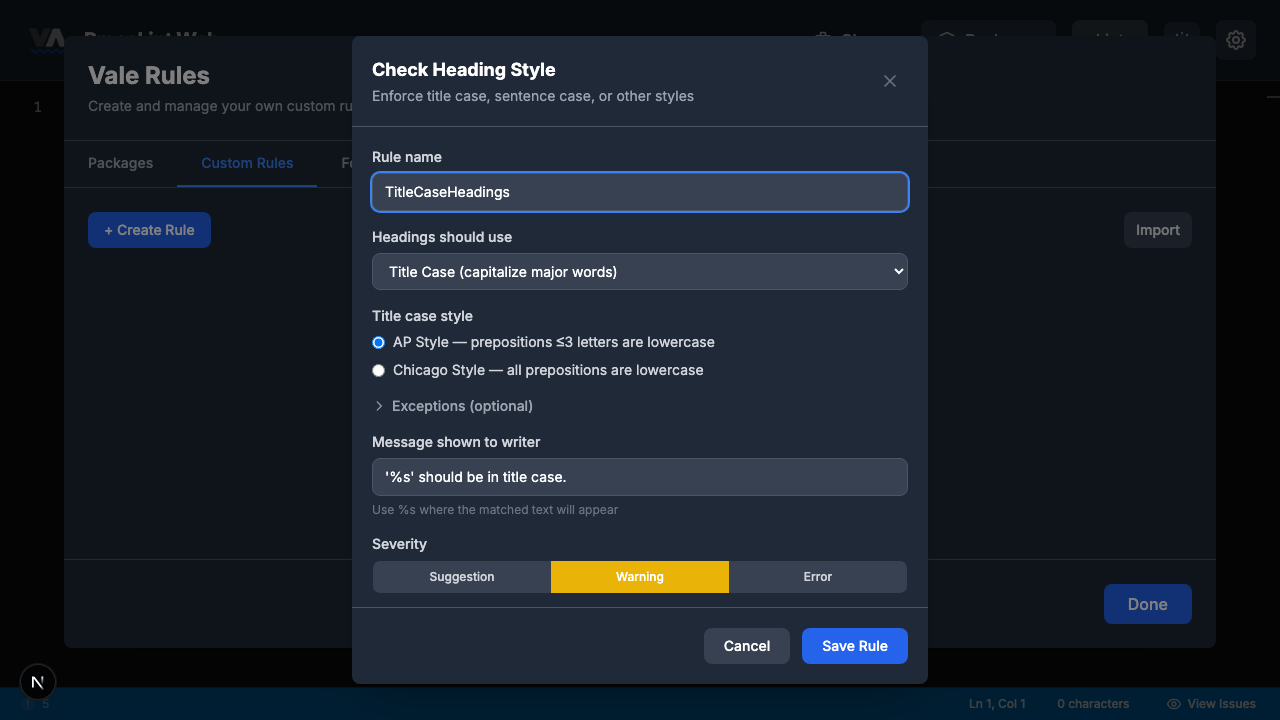
Step 6 — Fill in the rule and save
Enter TitleCaseHeadings as the rule name. The defaults are already set for AP-style title case:
- Headings should use: Title Case — already selected
- Title case style: AP Style — already selected
- Message:
'%s' should be in title case. - Severity: Warning
Click Save Rule.
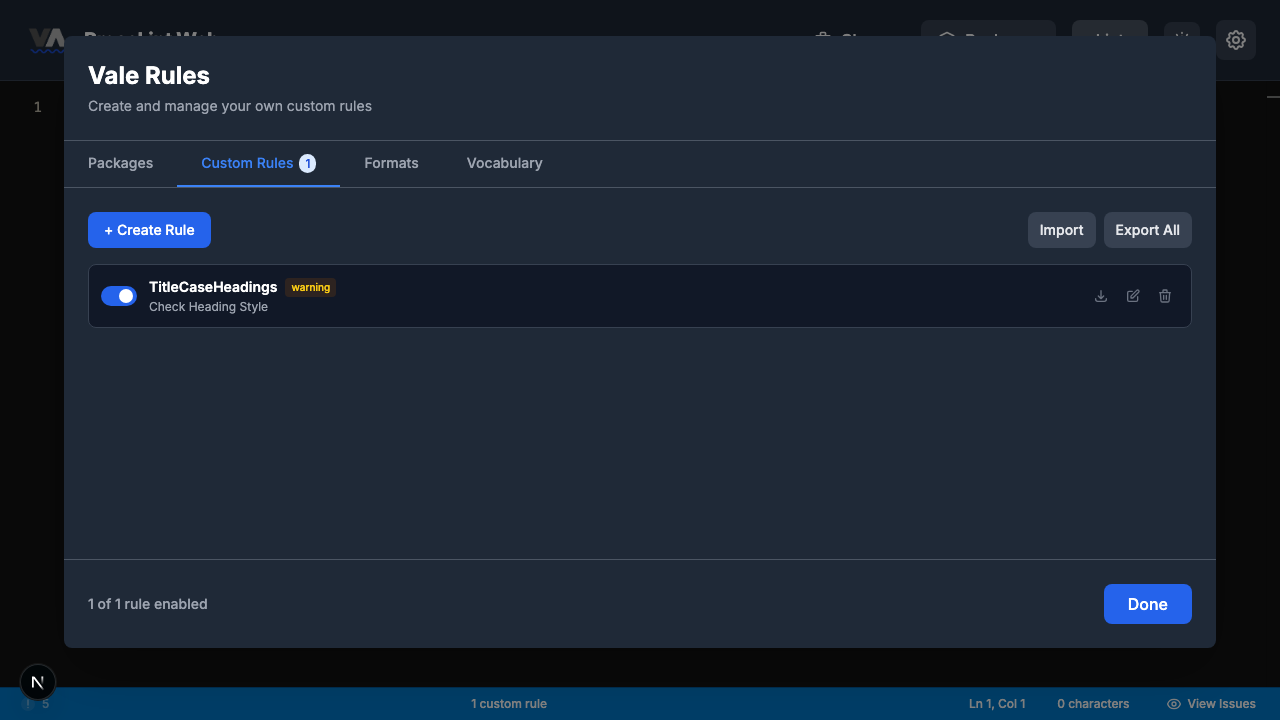
Step 7 — Close the modal
The rule is saved and appears in the Custom Rules tab. Click Done to close the modal and return to the editor.
Step 8 — Enter some text and lint
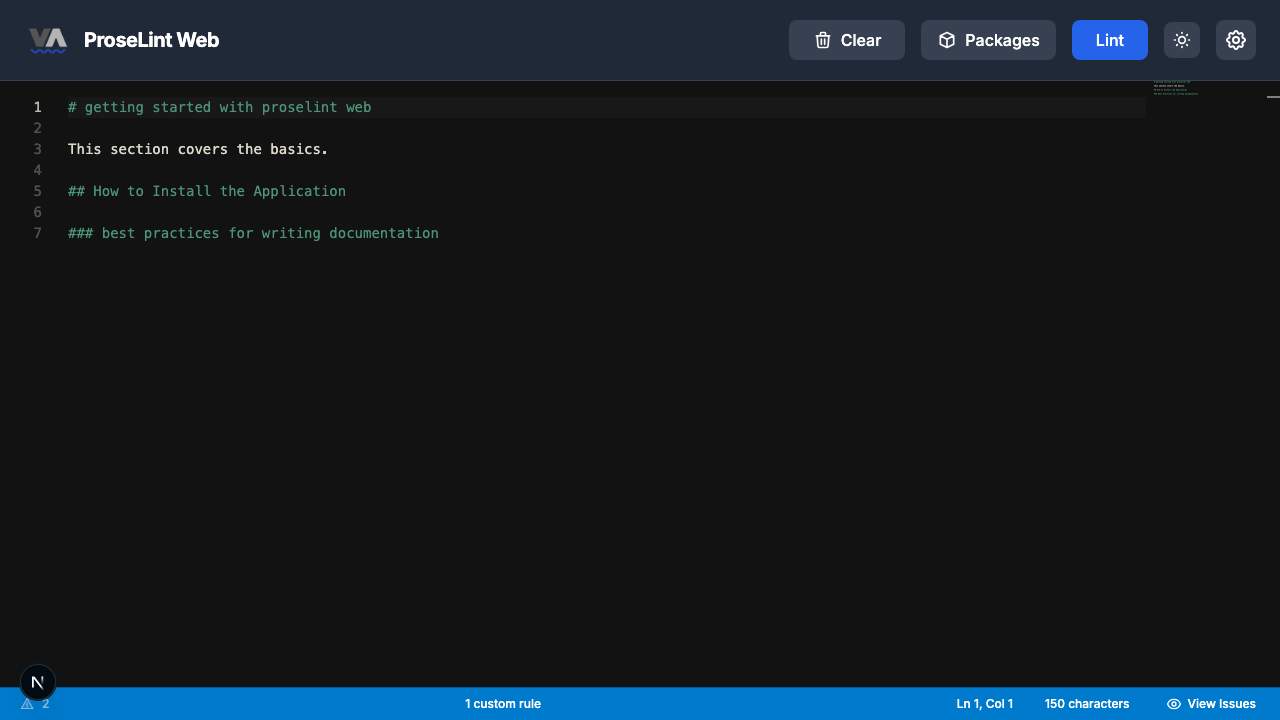
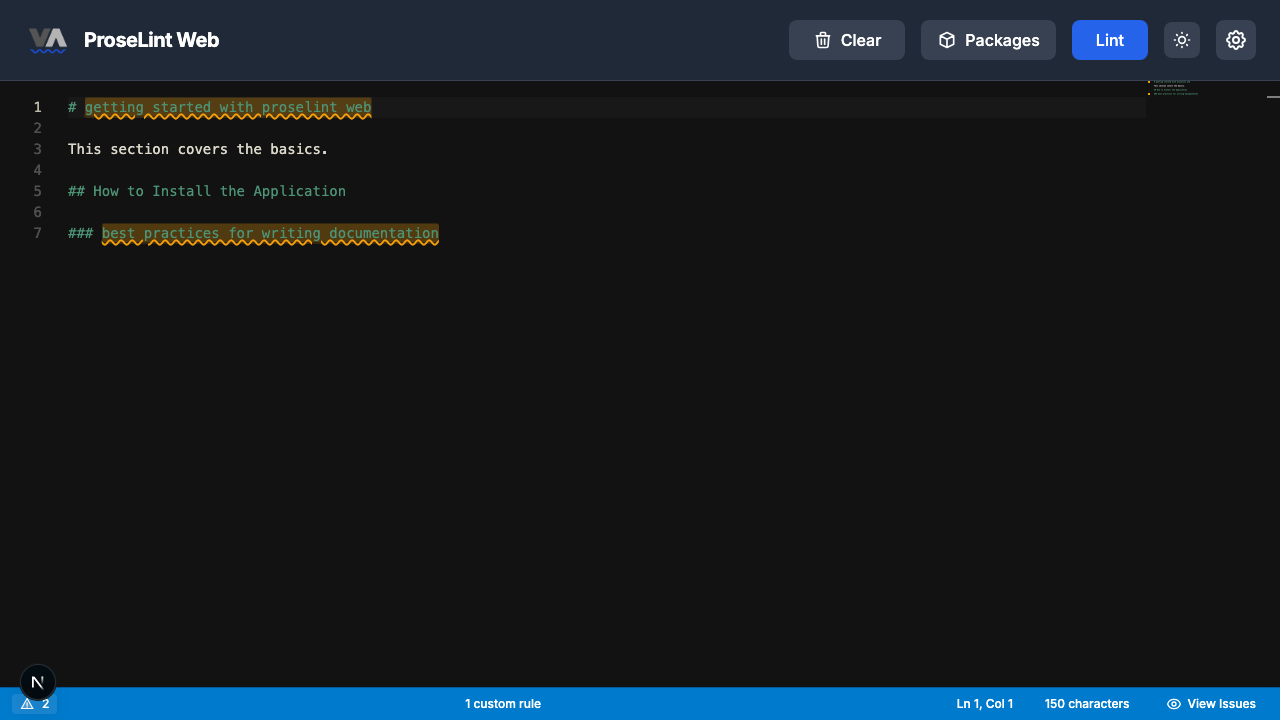
Paste this Markdown into the editor. Some headings follow title case; others don't:
# getting started with proselint web

This section covers the basics.

## How to Install the Application

### best practices for writing documentation
Click the Lint button to run Vale.
Step 9 — Review lint results
After linting, Vale highlights the headings that don't follow title case. Two out of three headings are flagged — "getting started with proselint web" and "best practices for writing documentation."
Step 10 — Review all issues
Click the issue count in the status bar. The panel lists every heading that violates title case:
- getting started with proselint web — 'getting started with proselint web' should be in title case.
- best practices for writing documentation — 'best practices for writing documentation' should be in title case.
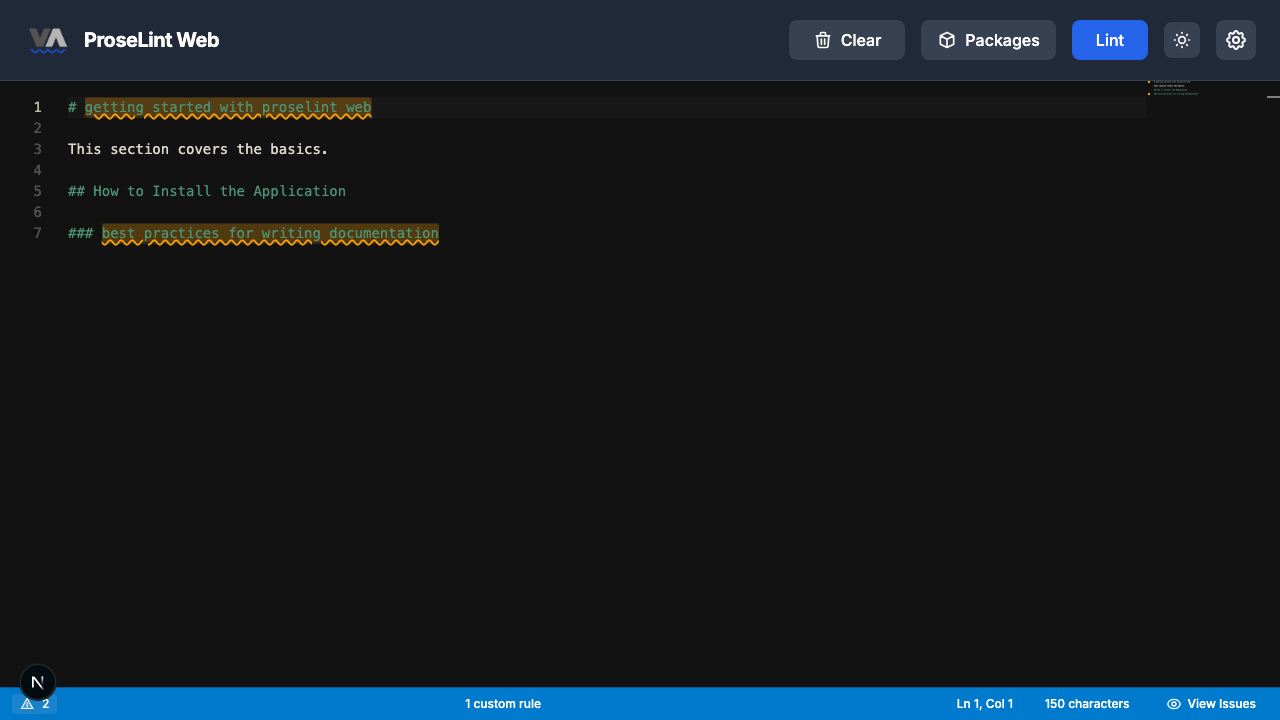
The correctly capitalized heading ("How to Install the Application") passes cleanly. Only the lowercase headings are flagged.
AP Style vs. Chicago Style
The rule builder offers two title case conventions:
- AP Style — prepositions of three letters or fewer ("in," "at," "by," "for") stay lowercase. Words of four letters or more are always capitalized.
- Chicago Style — all prepositions stay lowercase regardless of length ("through," "between," "without").
Pick whichever your team's style guide requires.
Next steps
- Switch styles — edit the rule and try Sentence case or Chicago Style title case.
- Add exceptions — words like "API," "iOS," or "pH" can be added to the exceptions list so they're never flagged.
- Export and share — click Export to download the rule as a
.ymlfile. - Try other rule types — the custom rules overview covers all eight Vale check types.
Resources
- Tutorial: Flag Words or Phrases — ban specific words
- Tutorial: Enforce Consistency — catch inconsistent spelling
- Tutorial: Catch Repetition — flag repeated words
- Custom rules overview — all 8 rule types explained
- ProseLint Web editor — try it now
Lint your docs for free
Browser-based Vale linting. No install, no sign-up, 100% private.
Open ProseLint WebGet it reviewed without GitHub friction
Share docs PRs with anyone for review. GitHub account optional.
Try DraftView free