Tutorial: Require Acronym Definitions With a Custom Rule
Acronyms are a constant source of confusion in technical writing. "CRM," "GDPR," "SLA" — writers use them freely, assuming the reader knows what they mean. Best practice says every acronym should be defined on first use: "Customer Relationship Management (CRM)." After that, the short form is fine.
In this tutorial you'll create a Require Definitions rule that flags any uppercase acronym that hasn't been defined elsewhere in the document. Common acronyms like API and URL are excluded automatically.
What you'll build
A Require Definitions rule named DefineAcronyms with these settings:
| Setting | Value |
|---|---|
| Template | Acronyms must be defined |
| Exceptions | API, URL, HTML |
| Severity | Error |
When Vale finds an uppercase acronym (3-5 letters) without a corresponding definition like "Full Name (ABBR)" in the document, it flags it.
Prerequisites
Open the ProseLint Web editor in your browser. No account or installation required.
Step 1 — Open the Packages modal
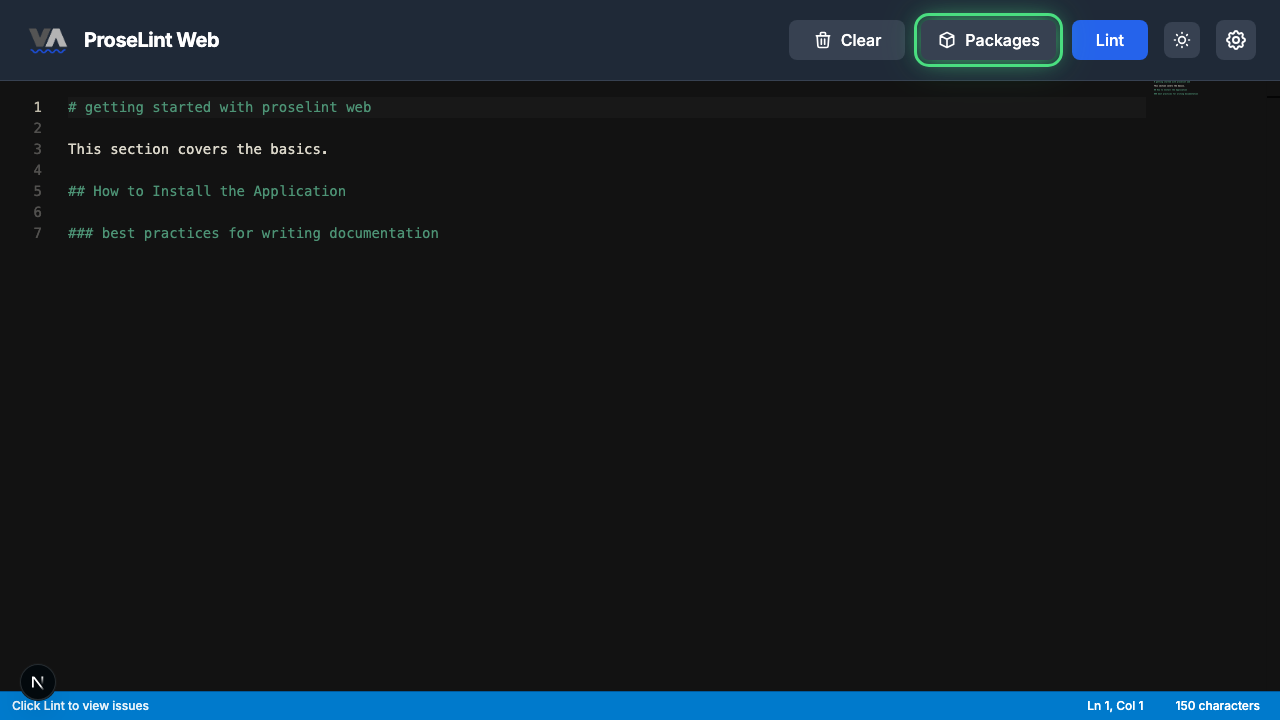
Navigate to the editor and click the Packages button in the toolbar.
Step 2 — Switch to the Custom Rules tab
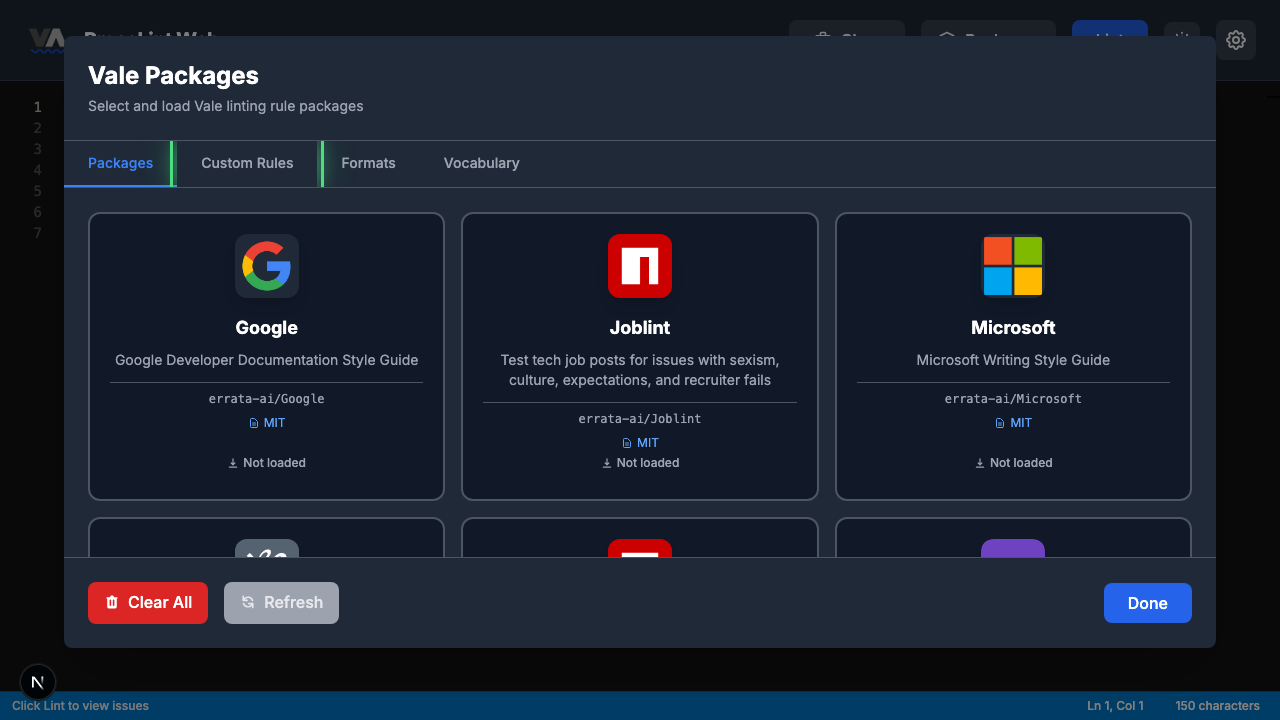
The Packages modal opens showing available style guide packages. Click the Custom Rules tab to switch to the rule management view.
Step 3 — Create a new rule
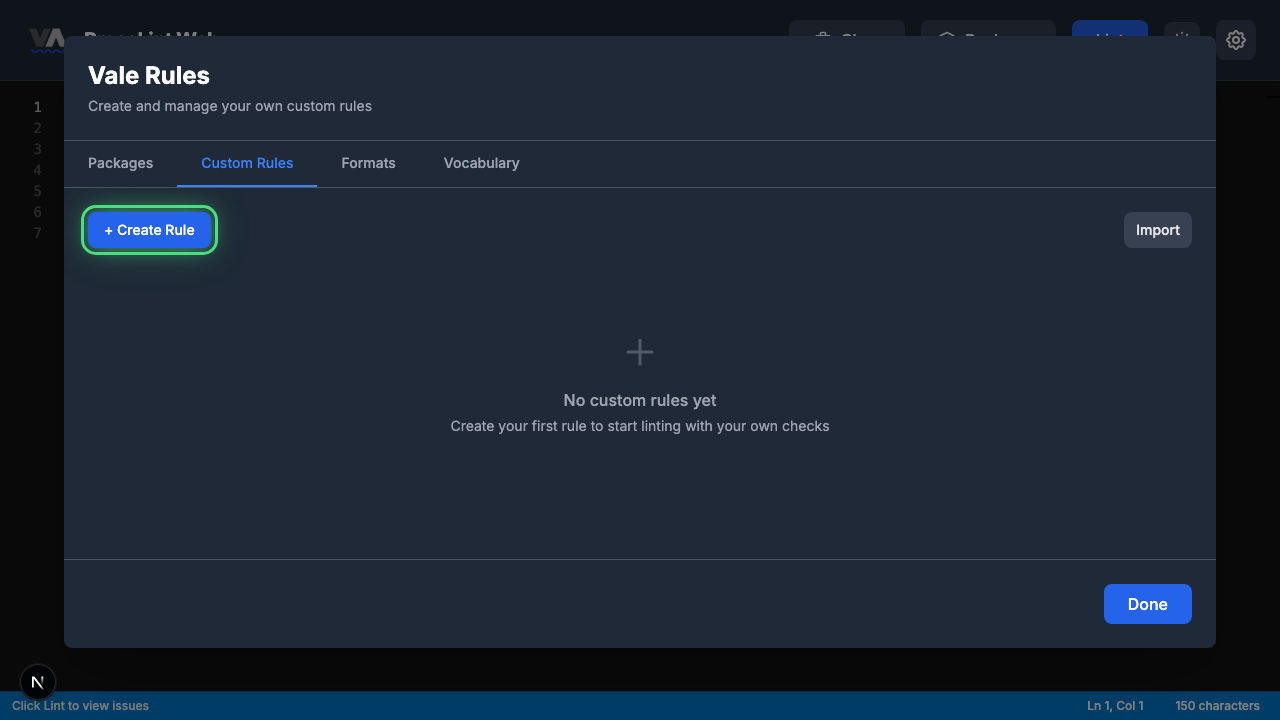
Click + Create Rule to open the rule type picker.
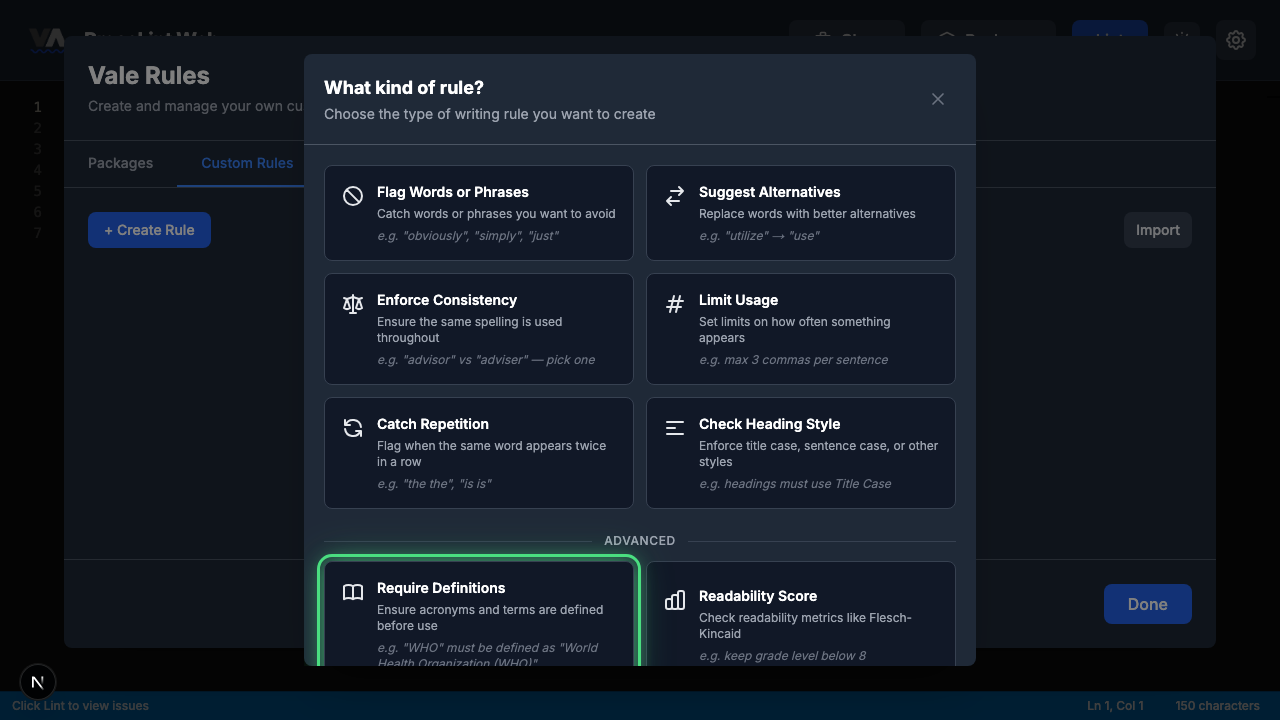
Step 4 — Pick "Require Definitions"
The rule type picker shows all eight Vale check types. Click Require Definitions — this rule type ensures that terms (like acronyms) are defined before they're used.
Step 5 — Review the rule builder form
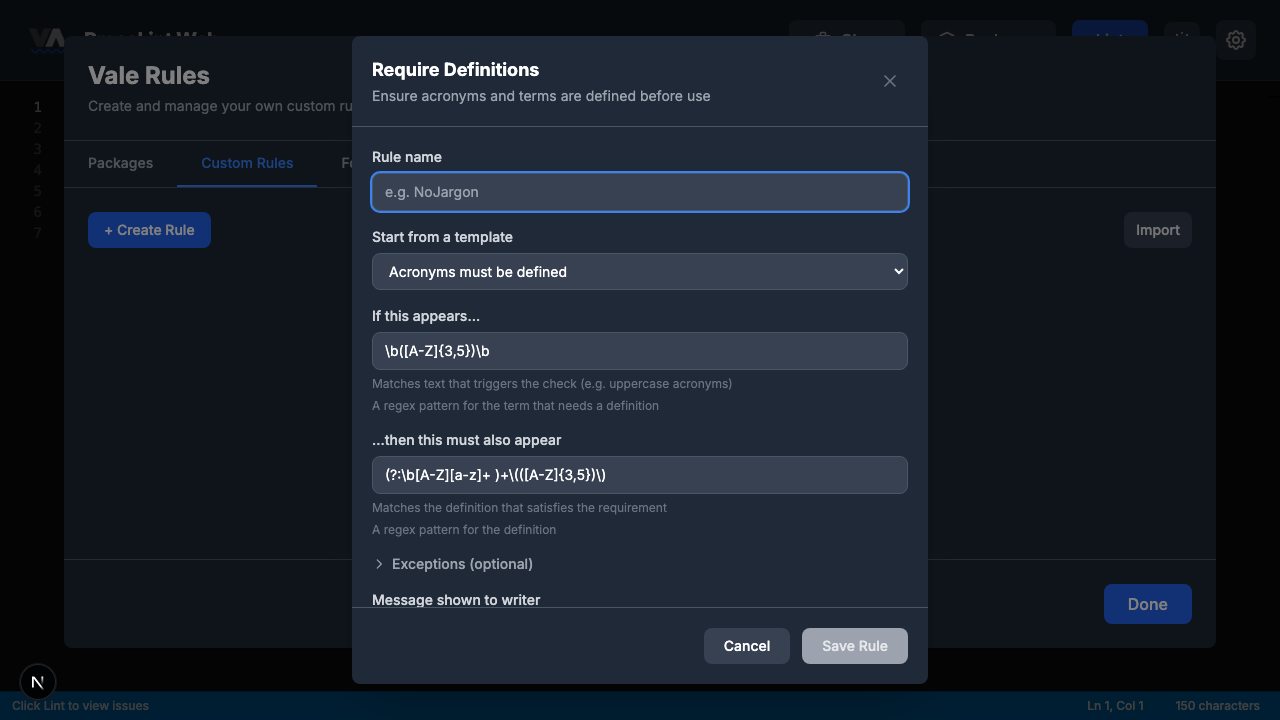
The rule builder opens with the "Acronyms must be defined" template pre-selected. The form has these sections:
- Rule name — a unique identifier for your rule
- Start from a template — "Acronyms must be defined" or "Custom pattern"
- If this appears... — regex pattern for the term that needs a definition (pre-filled for acronyms)
- ...then this must also appear — regex pattern for the definition (pre-filled for "Full Name (ABBR)" format)
- Exceptions — terms that don't need definitions (pre-filled with common web acronyms)
- Message shown to writer — pre-filled with
'%s' has no definition. - Severity — defaults to error
Step 6 — Fill in the rule and save
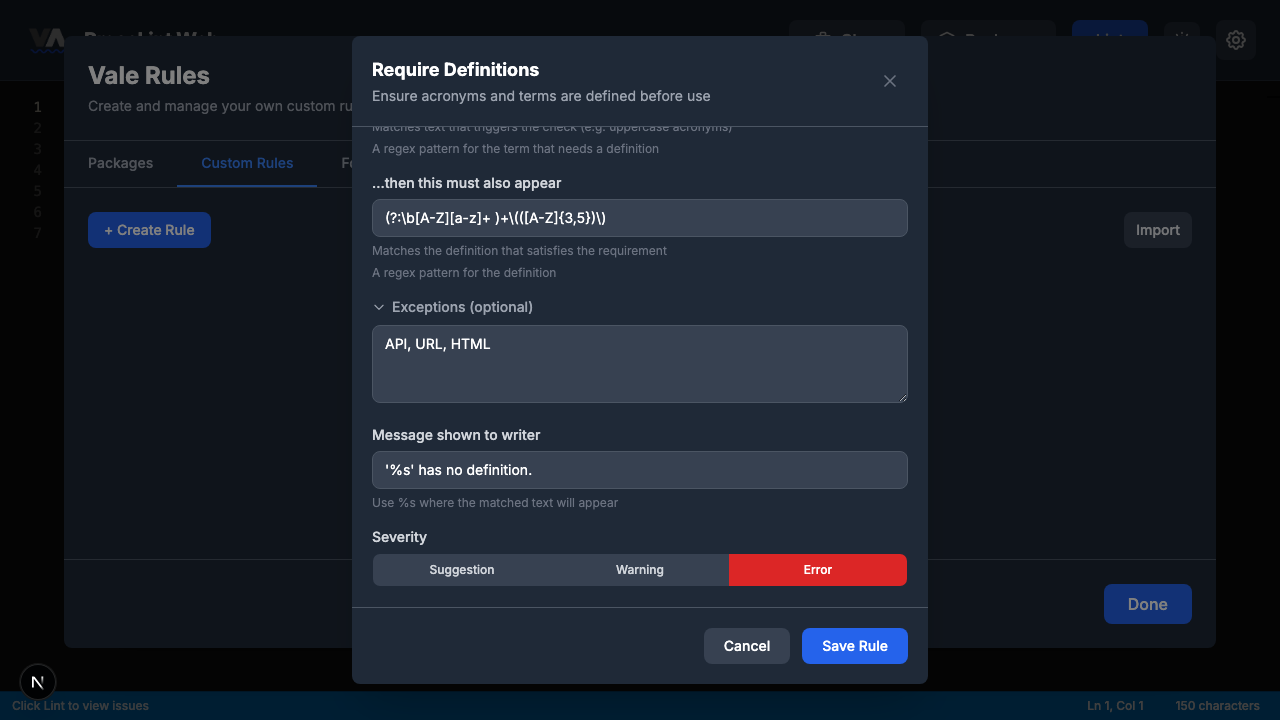
Enter DefineAcronyms as the rule name. The defaults are already excellent for acronym checking:
- Template: Acronyms must be defined — already selected
- If this appears:
\b([A-Z]{3,5})\b— matches 3-5 letter uppercase acronyms - ...then this must also appear:
(?:\b[A-Z][a-z]+ )+\(([A-Z]{3,5})\)— matches "Full Name (ABBR)" format - Exceptions: API, URL, HTML
- Message:
'%s' has no definition. - Severity: Error
Click Save Rule.
Step 7 — Close the modal
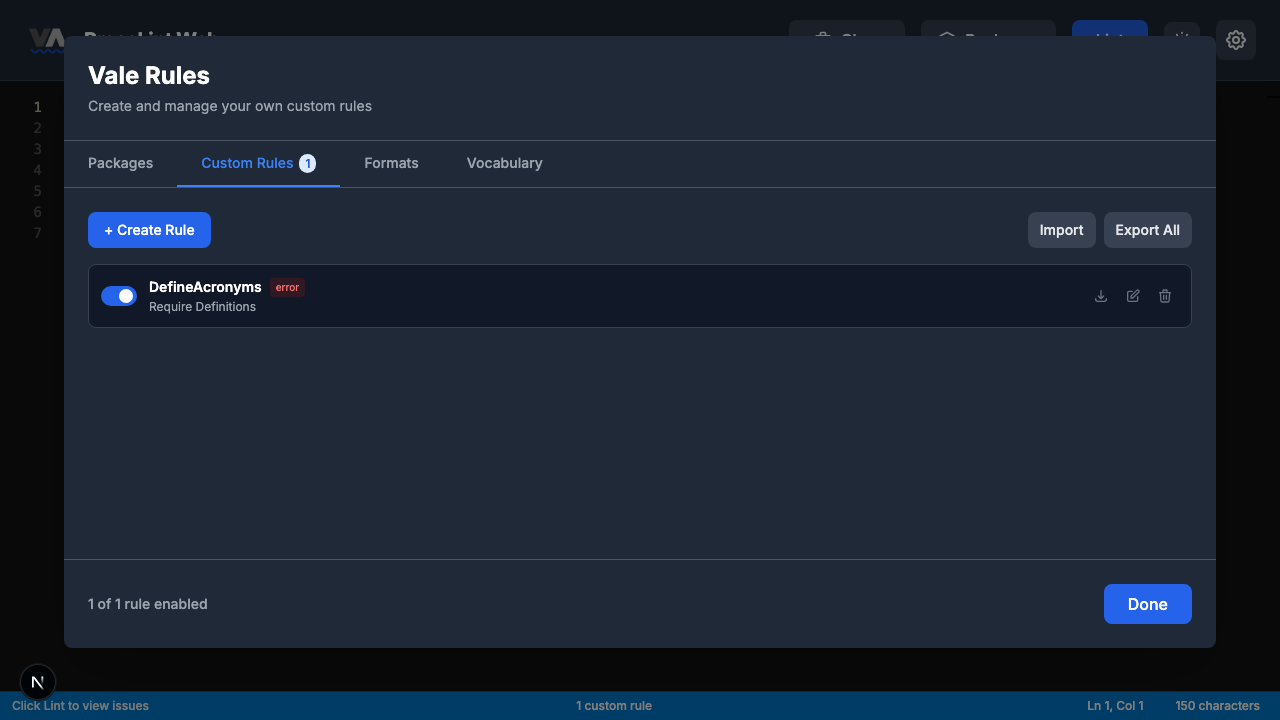
The rule is saved and appears in the Custom Rules tab. Click Done to close the modal and return to the editor.
Step 8 — Enter some text and lint
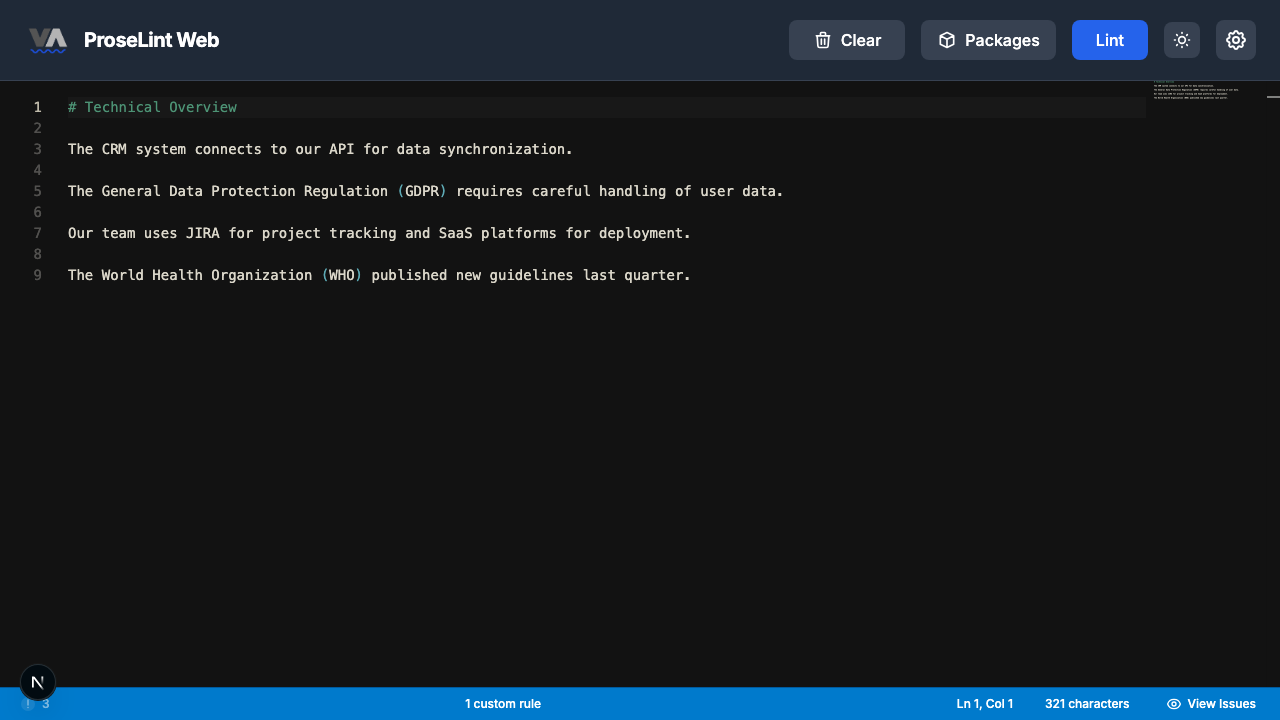
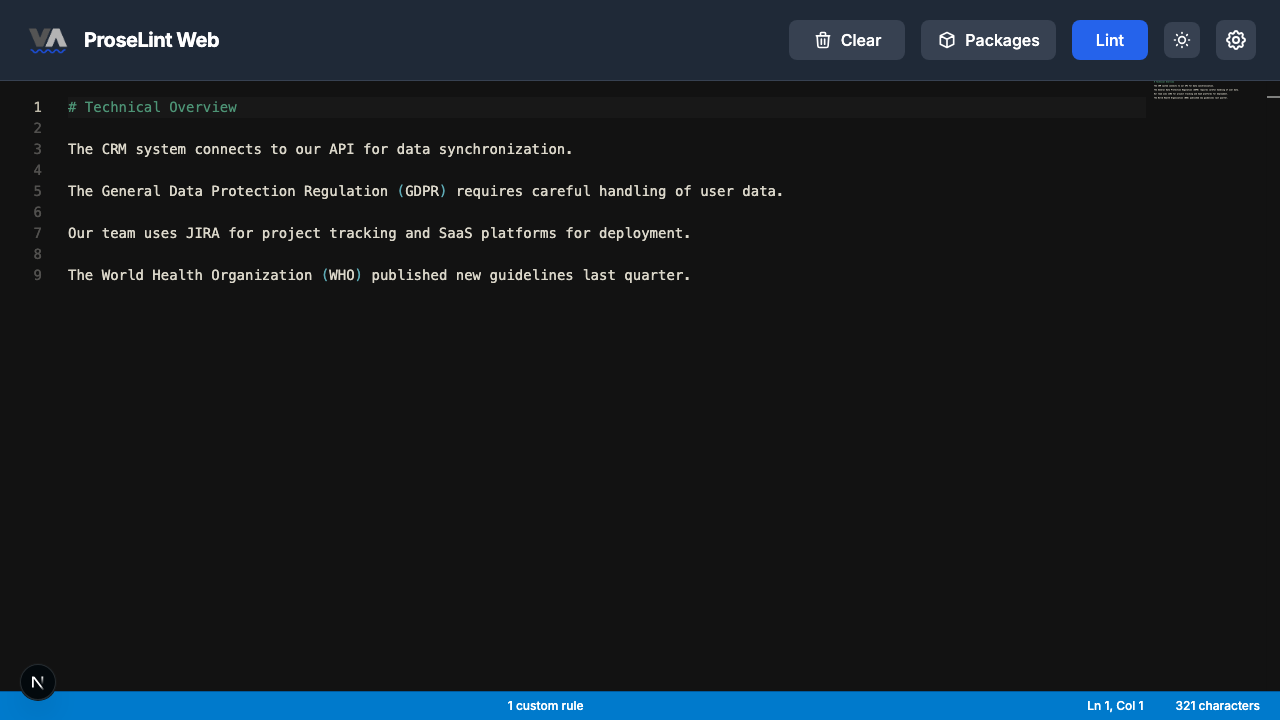
Paste this Markdown into the editor. It uses several acronyms — some defined, some not:
# Technical Overview

The CRM system connects to our API for data synchronization.

The General Data Protection Regulation (GDPR) requires careful handling of user data.

Our team uses JIRA for project tracking and SaaS platforms for deployment.

The World Health Organization (WHO) published new guidelines last quarter.
Notice that API is in the exceptions list, GDPR and WHO are defined in the text with "Full Name (ABBR)" format, but CRM, JIRA, and SaaS have no definitions.
Click the Lint button to run Vale.
Step 9 — Review lint results
After linting, Vale highlights the undefined acronyms. Three acronyms are flagged — CRM, JIRA, and SaaS — because they appear without a "Full Name (ABBR)" definition.
Step 10 — Review all issues
Click the issue count in the status bar. The panel lists every undefined acronym:
- CRM — 'CRM' has no definition.
- JIRA — 'JIRA' has no definition.
- SaaS — 'SaaS' has no definition.
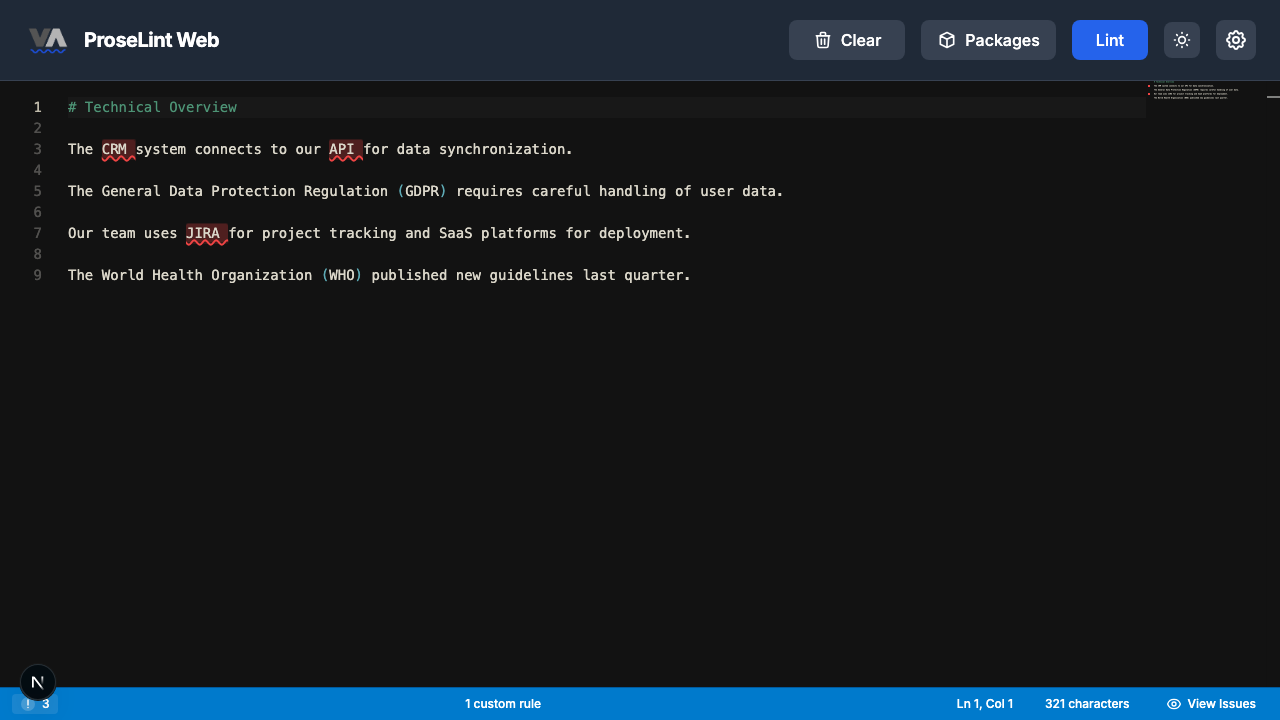
The rule correctly handled three cases:
- API — in the exceptions list, so it passes
- GDPR, WHO — defined in the text with "Full Name (ABBR)" format, so they pass
- CRM, JIRA, SaaS — no definition found, so they're flagged
Customizing the rule
The acronym template works well for most cases, but you can customize it:
- Exceptions — add industry-standard acronyms your team uses without definition (e.g., "AWS," "SQL," "CLI")
- Pattern length — modify the regex to catch 2-letter abbreviations like "AI" or longer ones like "UNESCO"
- Custom pattern — switch to "Custom pattern" in the template dropdown to define your own trigger-and-definition pair
Next steps
- Expand exceptions — add acronyms your team commonly uses without definition.
- Export and share — click Export to download the rule as a
.ymlfile. - Combine with style packages — load a package like Microsoft or Google alongside for comprehensive coverage.
- Try other rule types — the custom rules overview covers all eight Vale check types.
Resources
- Tutorial: Flag Words or Phrases — ban specific words
- Tutorial: Check Heading Style — enforce heading capitalization
- Tutorial: Enforce Consistency — catch inconsistent spelling
- Custom rules overview — all 8 rule types explained
- ProseLint Web editor — try it now
Lint your docs for free
Browser-based Vale linting. No install, no sign-up, 100% private.
Open ProseLint WebGet it reviewed without GitHub friction
Share docs PRs with anyone for review. GitHub account optional.
Try DraftView free